AI Generator#
The AI Generator converts natural language into a SurveyJS form definition. It is the part of the add-on where an LLM does the actual form-building work: an author describes what they need, and the generator produces a complete SurveyJS JSON schema that can be previewed, refined and finally activated as the survey’s form.
The generator supports three entry points:
Prompt-based creation — “a customer satisfaction survey with 10 questions, first name and e-mail at the end”.
Refinement — “change the rating questions from 1–5 to 1–10 and make the e-mail field required”.
Document conversion — upload a PDF (including fillable PDFs), DOCX, ODT or HTML file and let the AI rebuild it as an online form.
The AI configuration (provider, model, prompts) is global — see Global options. The machine-readable endpoints are documented in Endpoints.
How it works#
LLM stack and providers#
Generation and refinement run on the Python llm package, wrapped by the
privacyforms_ai helper library. The provider is selected globally and
the three modes are mutually exclusive:
installed— a model from thellmplugin registry (e.g. agpt-*/OpenAI orclaude-*/Anthropic model). An API key is optional; when present it is exported asOPENAI_API_KEYorANTHROPIC_API_KEYdepending on the model name.ollama— a local Ollama server. Only the URL is required; the model defaults tollama3.2when not set. The server URL is exported asOLLAMA_HOSTand the effective model name is prefixed withollama/. No API key is involved — the model runs on your own machine.custom— any OpenAI-compatible endpoint (e.g. DeepSeek, a self-hosted vLLM/TGI server). Requires all three of model name, API base URL and API key. The model is built viaAI.get_custom_model()withapi_baseset to your URL.
The resolver is build_llm_model() in browser/services/ai.py; a
settings dict from load_ai_settings() is turned into a concrete
llm model instance. The stored provider selection decides which fields
are used; installed is the default.
Prompt pipeline#
The generator does not send the raw user input to the model. It builds a structured prompt:
A system-style instruction positions the model as a SurveyJS expert and demands a pure SurveyJS JSON object: no markdown, no code fences, no explanations, no trailing commas. This keeps the output parseable.
Quality rules are injected: current SurveyJS v2+ schema conventions, clear structure (
title,description,pages,elements), suitable field types, readable names, validation where the prompt makes requirements obvious, and “ready to edit in SurveyJS Creator”.The global Prompt before / Prompt after settings wrap the author’s text for prompt-based creation and for refinement, so site-wide conventions (tone, mandatory sections, output constraints) apply to every request. Prompt default only prefills the prompt field of an empty AI workspace; it is never sent on its own. Document conversion uses its own instruction set and is not wrapped.
For refinement, the current form JSON is embedded into the prompt and the model is asked to return the full updated JSON — not a diff.
The response is parsed tolerantly:
extract_json_text()pulls the JSON object out of the model’s reply (handles code fences and prose) before it is validated withjson.loads.
The temporary form workspace#
AI work happens in a temporary workspace per survey, stored in annotations — deliberately separate from the version history. This is the key architectural detail:
The working draft lives under
zopyx.surveyjs.ai.temp_form_json.Every refinement appends the previous draft plus the prompt that produced the change to a history list (
zopyx.surveyjs.ai.temp_form_history), capped at the last 5 steps. This gives a bounded undo stack.The draft only becomes “real” when explicitly promoted (see workflow). Until then, the published survey form is completely untouched.
Clearing the workspace discards the draft and its history — there is no garbage collection or recovery.
Typical workflow#
Open
@@aion the survey.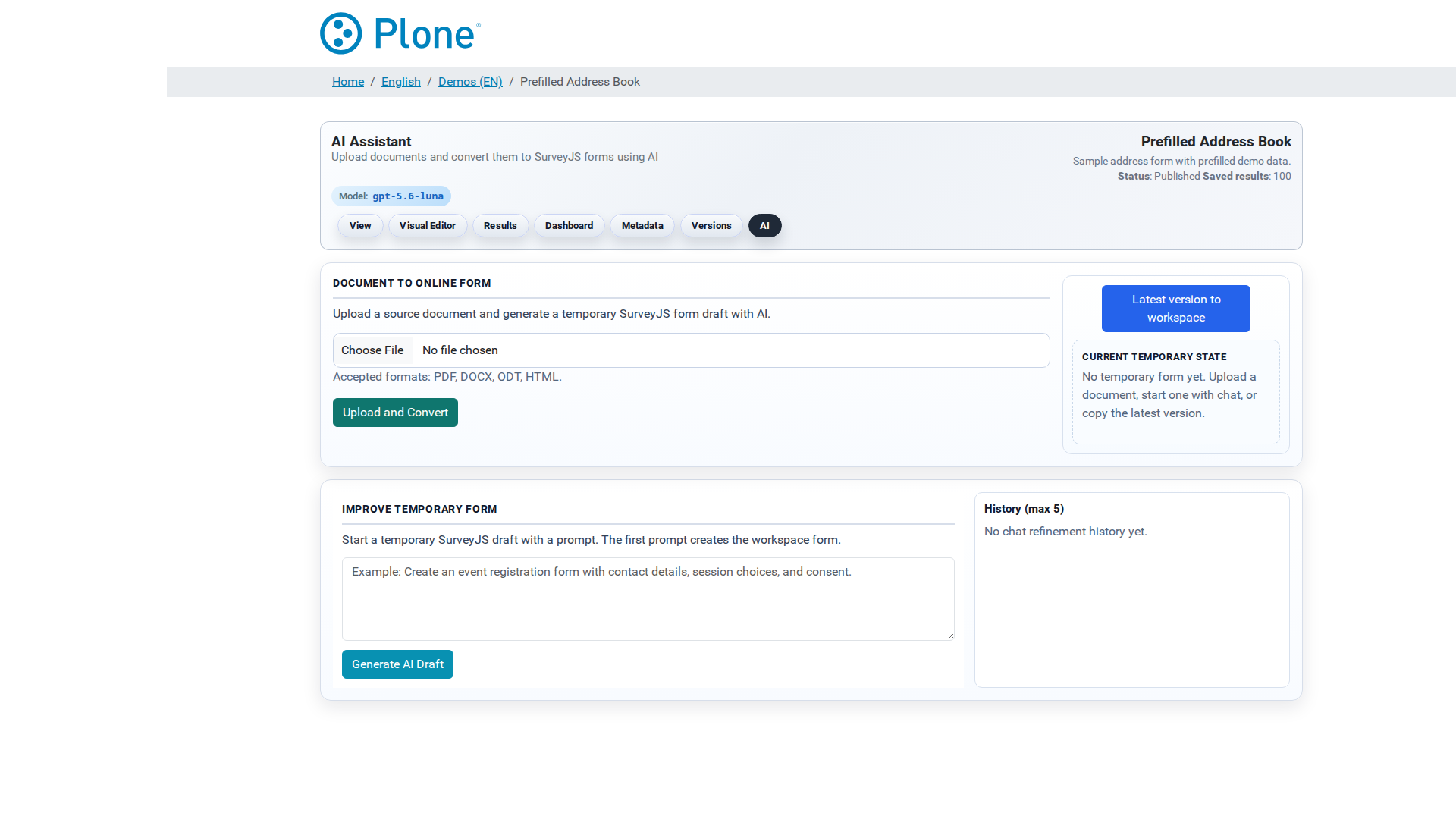
Start: either copy the latest form version into the workspace (
@@ai-copy-latest-to-temp— the recommended base for refinements), upload a document (@@ai-upload), or just type a prompt.Create or refine: submit a prompt (
@@ai-chat-refine). With an empty workspace this generates a draft from scratch; with an existing draft it returns the full updated JSON.Iterate: refine again, preview the draft, and use the history controls (
@@ai-restore-history-step/@@ai-delete-history-step) to undo individual steps.Promote:
@@ai-store-temp-versionsaves the draft as a new form version — it becomes the active form. The workspace is cleared.
Document conversion#
@@ai-upload accepts PDF, DOCX, ODT and HTML files (extension or MIME
type based). For PDFs the converter first tries to extract fillable-PDF
field metadata (ids, types, labels); this metadata is handed to the model
together with the document content, and a field mapping between the PDF and
the generated survey is stored on the survey. The conversion prompt adds
layout fidelity requirements: preserve grouping, section order and
row/column structure (via panel, paneldynamic, multipletext or
matrix elements) so the online form feels like the original document. When
the draft is generated from a plain prompt or a non-PDF file, any stale PDF
field mapping is cleared.
Configuration & operational notes#
The global AI settings live in Site Setup > Forms → AI; see Global options for the full field reference.
“Configured” means: installed → a model name is set; ollama → the URL is set (model optional, defaults to
llama3.2); custom → model name, URL and API key are all set. The control panel enforces mutual exclusivity by clearing the fields of inactive provider groups on save.API keys are write-only: the control panel uses a keep-mask convention — an empty submitted key never overwrites the stored one.
Model choice matters: larger models generally produce structurally better forms but are slower and more expensive. Start with the provider’s default, then switch when the output quality is insufficient.
Prompt scaffolding pays off: a good “Prompt before” (global rules, tone, mandatory sections) standardizes output across all authors; keep it short to avoid conflicts with the user’s own instructions.
The AI connection test buttons in the forms-settings AI panels call
@@ai-testand report provider/model/endpoint reachability before you rely on generation.The workspace is per survey and not shared; promote or export drafts you want to keep, because
@@ai-clear-temp-storageremoves them permanently.
AI transparency (EU AI Act, Article 50)#
The AI features of this add-on fall under the transparency obligations of Article 50 of the EU AI Act (Regulation (EU) 2024/1689, applicable since 2 August 2026). Those obligations bind the operator of a site that runs the features, not the add-on: whoever puts the generator or the chatbot into service under their own name is the provider (Art. 3(3)) and, as a user, the deployer (Art. 3(4)) — “whether for payment or free of charge”.
A free and open-source licence is not an exemption from Article 50. The open-source carve-out of Art. 2(12) (“this Regulation does not apply to AI systems released under free and open-source licences”) excludes systems that are placed on the market or put into service as high-risk systems or as a system that falls under Art. 5 or Art. 50 — so it does not apply here once the AI features are exposed to people.
What the obligations mean for this add-on#
Art. 50(1) — interaction disclosure. @@ai (prompt-based creation,
refinement) and the chatbot (@@chatbot) are intended to
interact directly with natural persons, so those persons must be informed
that they are interacting with an
AI system. The information has to be clear and distinguishable and given at
the latest at the first interaction (Art. 50(5), which also points to the
applicable accessibility requirements). The “obvious from the point of view
of a reasonably well-informed person” exemption is narrow and should not be
relied on for a chat that answers in natural language.
Art. 50(2) — machine-readable marking of AI-generated content. The generator produces synthetic text: the SurveyJS JSON, page and question titles, descriptions and labels. Providers of AI systems generating synthetic content must ensure that the outputs are marked in a machine-readable format and detectable as artificially generated, to the extent technically feasible and taking the state of the art into account. The exception for pure assistive/standard editing — output that does not substantially alter the input or its semantics — does not describe generating a form definition from a prompt or from an uploaded document.
Art. 50(4) — published text. Where exported content (HTML, PDF, DOCX, Markdown, plain text — see Results and Exports) is published with the purpose of informing the public on matters of public interest, the deployer must disclose that the text was artificially generated, unless a natural or legal person holds editorial responsibility for the publication. The exemption is about real editorial control, not about a click on the export button.
Status in this add-on#
Neither disclosure is implemented. @@ai shows the configured model
and the workspace state, not a notice that this is an AI system; the chatbot
opens without one; and no exporter adds a label, footnote or watermark that
marks its content as artificially generated. A deployment that exposes these
features to authors, respondents or the public has to add the disclosure
itself — see Known limitations and roadmap → “AI transparency (EU AI Act, Article 50)”.
Article 50 is not the whole AI Act: it is additional to the risk-management and data-governance requirements of Chapter III for systems classified as high-risk (Art. 50(6)), and it leaves other transparency duties under Union or national law untouched. This section describes how this project reads the provision; it is not legal advice.
Endpoints#
All endpoints require cmf.ModifyPortalContent and operate on the survey
(see Endpoints for parameters and responses):
@@ai-chat-refine— create or refine the temp form from a prompt.@@ai-upload— convert an uploaded document into a draft.@@ai-copy-latest-to-temp— copy the active form into the workspace.@@ai-store-temp-version— promote the draft to a form version.@@ai-restore-history-step/@@ai-delete-history-step— undo management.@@ai-clear-temp-storage— discard the workspace.@@ai-test— provider connectivity test (site root, Manager).
Troubleshooting#
“AI model not configured” — the active provider is incomplete: installed needs a model name, ollama needs a URL, custom needs all three fields. Check Site Setup > Forms → AI.
“privacyforms_ai package not found” — the helper package is missing from the Plone environment; install it (it is a regular dependency of the add-on).
Ollama errors — verify the server URL is reachable from the Plone host and that the model is pulled locally (
ollama list).Custom endpoint errors — check that the base URL is the OpenAI-compatible API root (not a chat path), that the key is valid, and that the endpoint is reachable (the
@@ai-testbutton reports this).Invalid JSON from the model — retry; if it persists, the model may be too weak for complex requirements. Switch to a larger model or split the request into smaller steps.