Global options#
These options are stored in the Plone registry and edited in the Forms control panel (Site Setup > Forms). They provide site-wide defaults and switches. Per-survey settings generally take precedence over the global defaults (notably for the Mail settings). Survey-specific options live in the Survey options.
The control panel is organized into the tabs below.
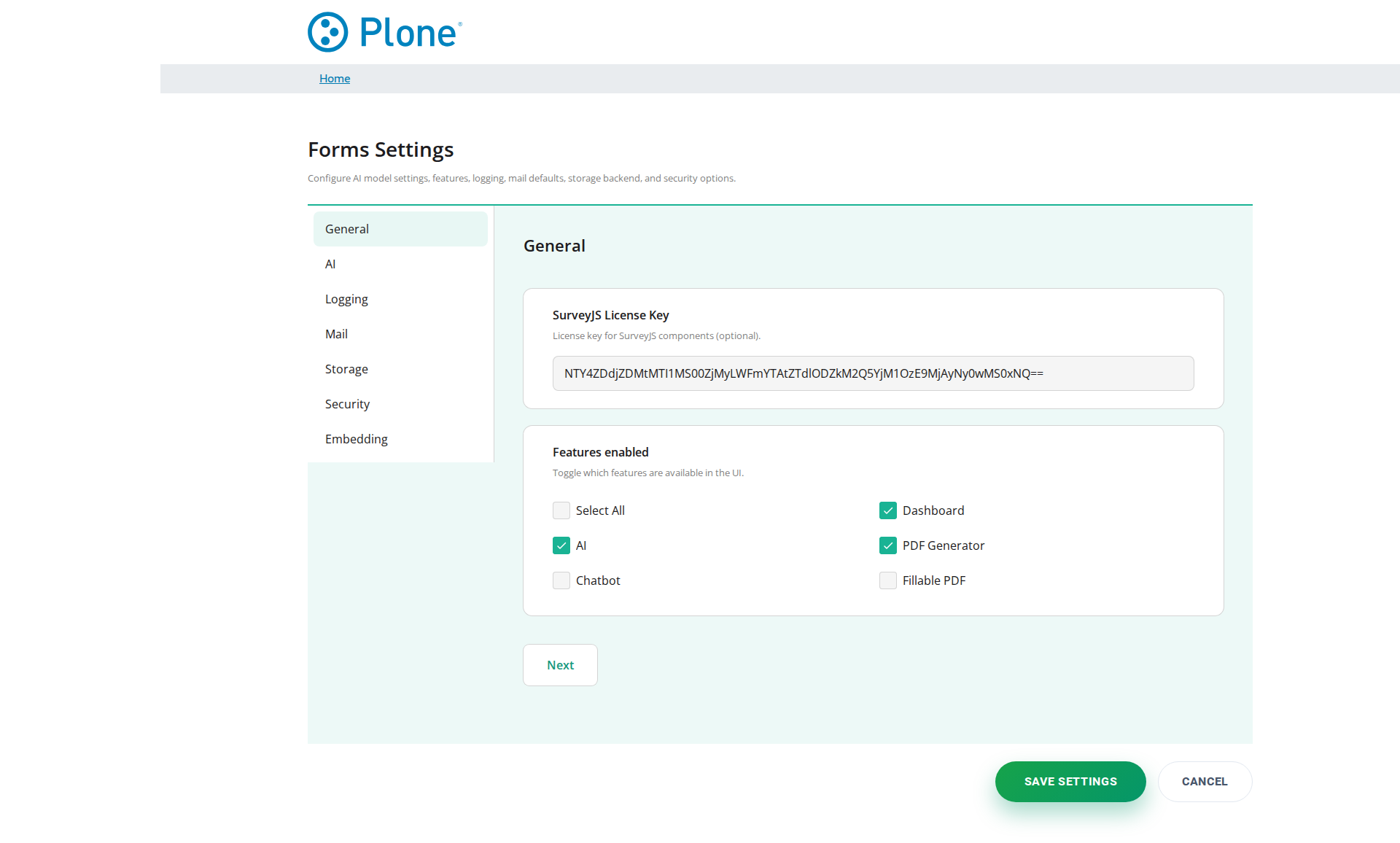
General#
Setting |
Description |
|---|---|
SurveyJS License Key |
Optional license key for the commercial SurveyJS components. Without a key the components run in evaluation/open-source mode, which shows the SurveyJS watermark and may limit certain features. Enter the key exactly as provided by SurveyJS — whitespace or line breaks invalidate it. Leave empty to stay in evaluation mode. How the key is provided to the site at build time (key file, 1Password, GitHub secret) is documented in License Key and AI Parameters. |
Features enabled |
Toggles which features are available in the UI site-wide. Options:
|
AI#
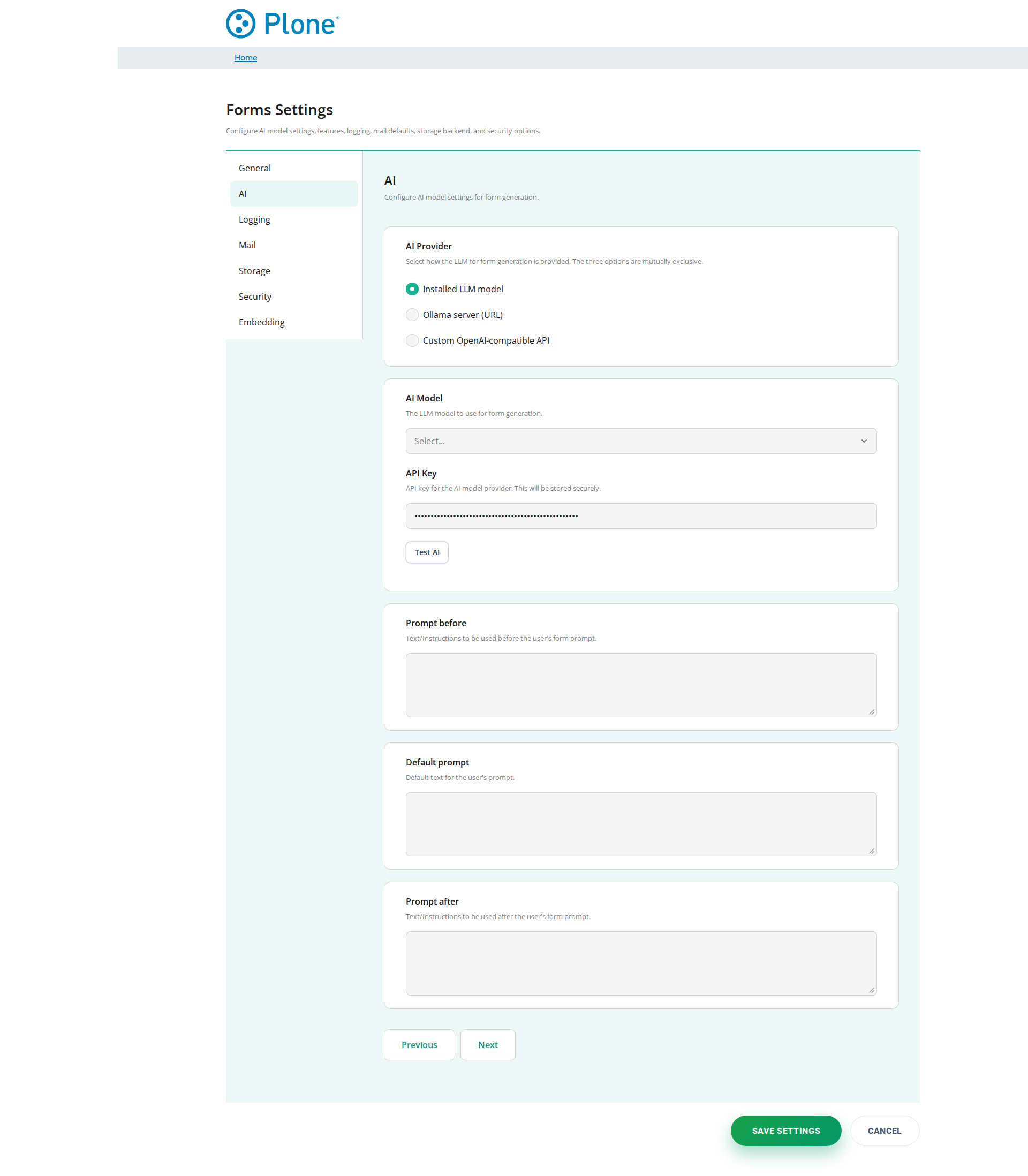
These settings select the LLM used for AI-assisted form generation and how it is reached. The three provider modes are mutually exclusive — configure exactly one of them:
installed (default) — uses the LLM provider bundled with the installation. Configure AI Model and, if the provider requires it, API Key.
ollama — a local Ollama server. Set Ollama URL; Ollama Model defaults to
llama3.2when empty. No API key is needed because the model runs on your own machine.custom — any OpenAI-compatible API endpoint. Requires all three fields: LLM Name, LLM API URL and Custom API Key.
Setting |
Description |
|---|---|
AI Provider |
Selects the provider mode: |
AI Model |
The model name passed to the selected provider (e.g. |
API Key |
API key for hosted provider models. Stored securely (password field, not shown in plain text). If empty, AI generation fails unless the provider is configured through another mechanism. |
Ollama URL |
Base URL of a local Ollama server, e.g. |
Ollama Model |
The model name on the Ollama server (e.g. |
LLM Name |
The model name as expected by the custom endpoint, e.g.
|
LLM API URL |
Base URL of the custom OpenAI-compatible API endpoint, e.g.
|
Custom API Key |
API key for the custom endpoint. Stored securely. Only relevant in
|
Prompt before |
Text/instructions inserted before the user’s prompt when a form is generated. Use this to enforce global rules, tone or formatting requirements for every generated form. Keep it short to avoid conflicts with the user’s own instructions. |
Default prompt |
Default text shown in the AI prompt field of the form generation UI. This only prefills the input; it is not automatically prepended or appended to the user’s final prompt. |
Prompt after |
Text/instructions appended after the user’s prompt. Use this to add constraints or a mandatory output structure (e.g. “always include a validation section”) while still letting users supply their own content. |
Logging#
Setting |
Description |
|---|---|
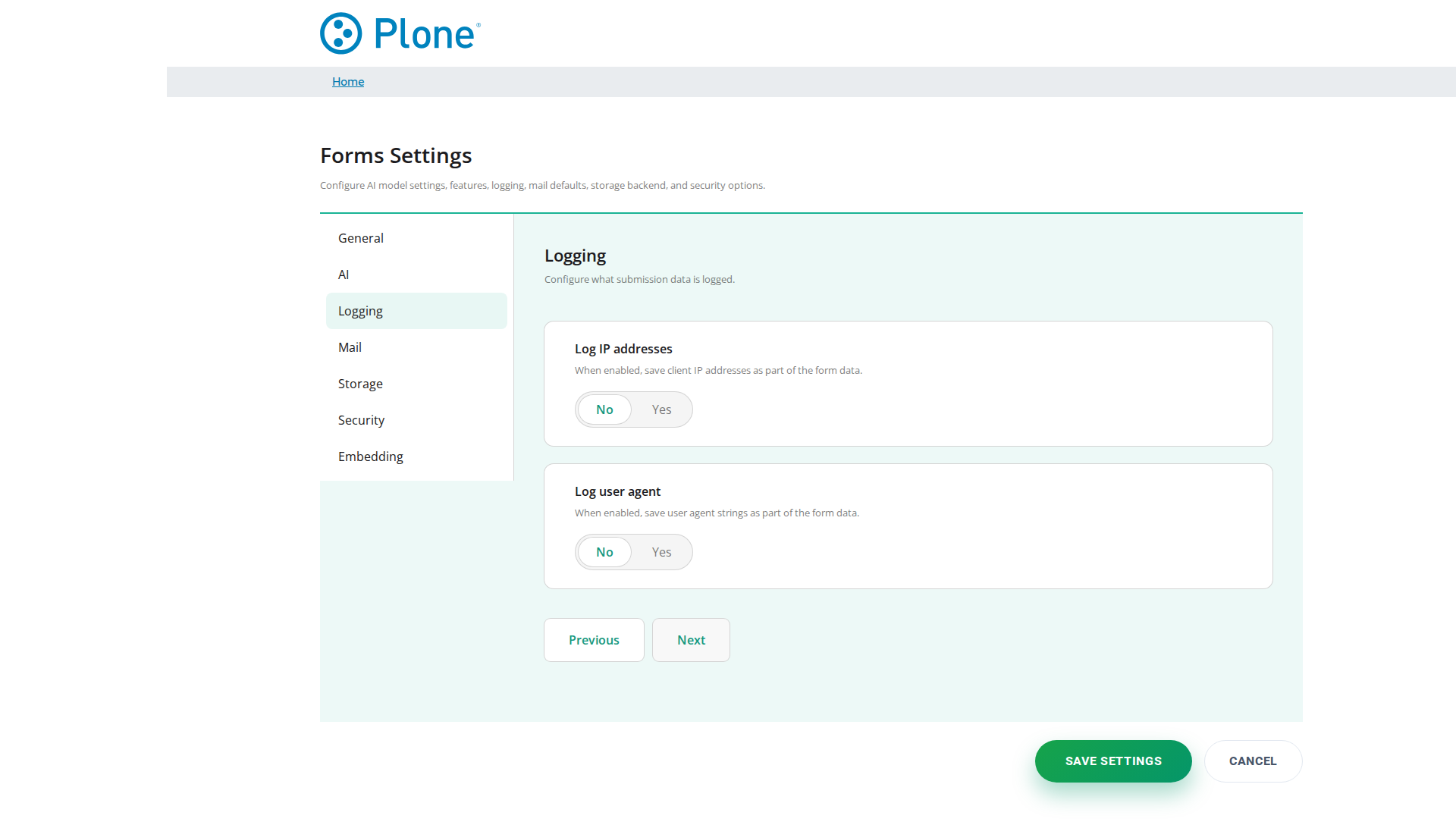
Log IP addresses |
Store the submitting client’s IP address together with each submission. Helpful for abuse detection and audits, but introduces privacy and data-protection obligations (the IP is personal data). Default: off. |
Log user agent |
Store the submitting browser’s user-agent string with each submission. Useful for diagnostics and statistics; like the IP address it may be considered personal data. Default: off. |
Mail#
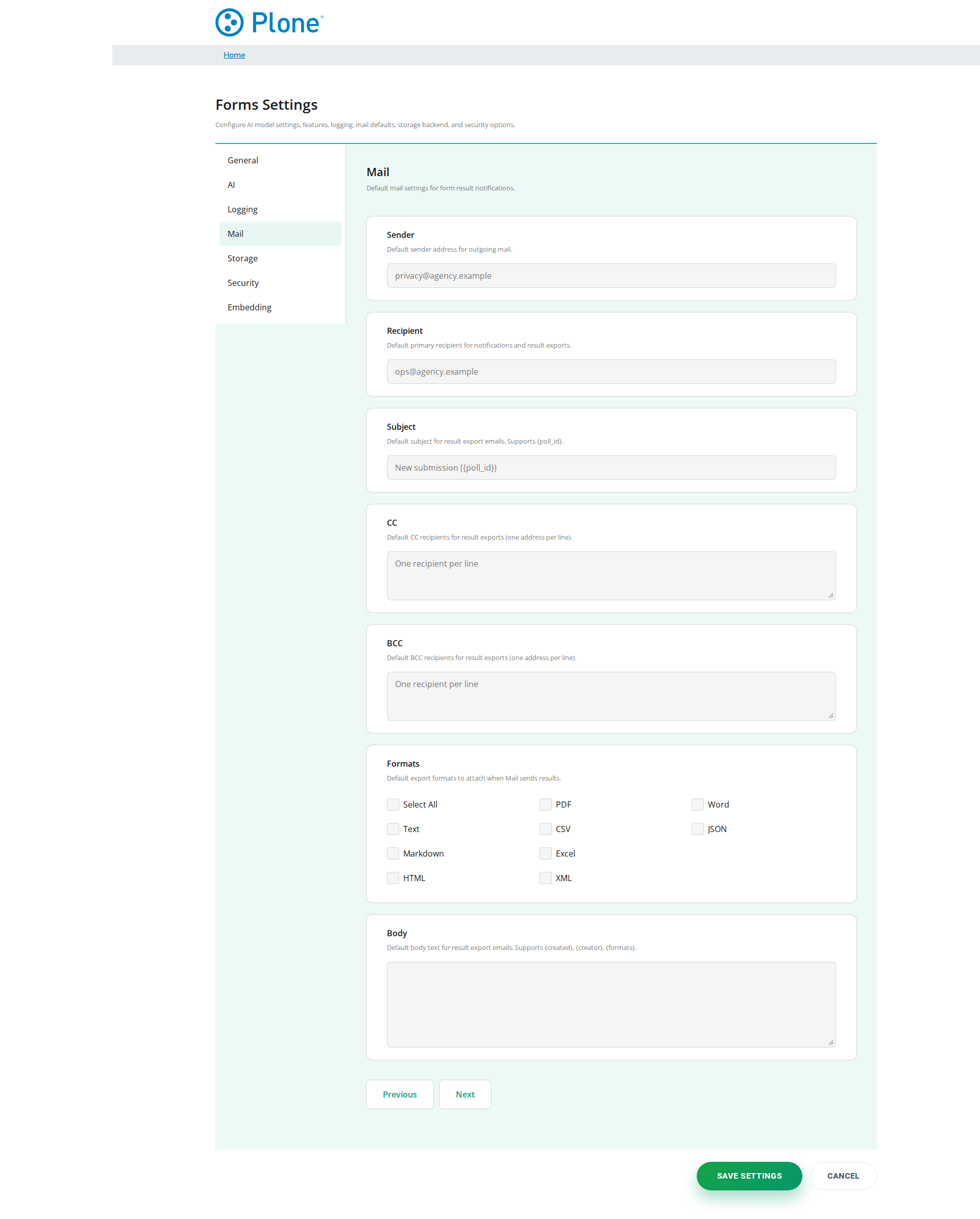
Global defaults for outgoing result-export e-mails. Per-survey Mail settings override these values; surveys without their own Mail settings inherit them.
Setting |
Description |
|---|---|
E-Mail sender |
Default sender address for outgoing mail (e.g.
|
E-Mail recipient |
Default primary recipient for notifications and result exports. |
Subject |
Default subject for result export e-mails. Supports |
E-Mail CC |
Default CC recipients (one address per line). |
E-Mail BCC |
Default BCC recipients (one address per line). |
Formats |
Default export formats to attach when Mail sends results ( |
Body |
Default body text for result export e-mails. Supports |
Storage#
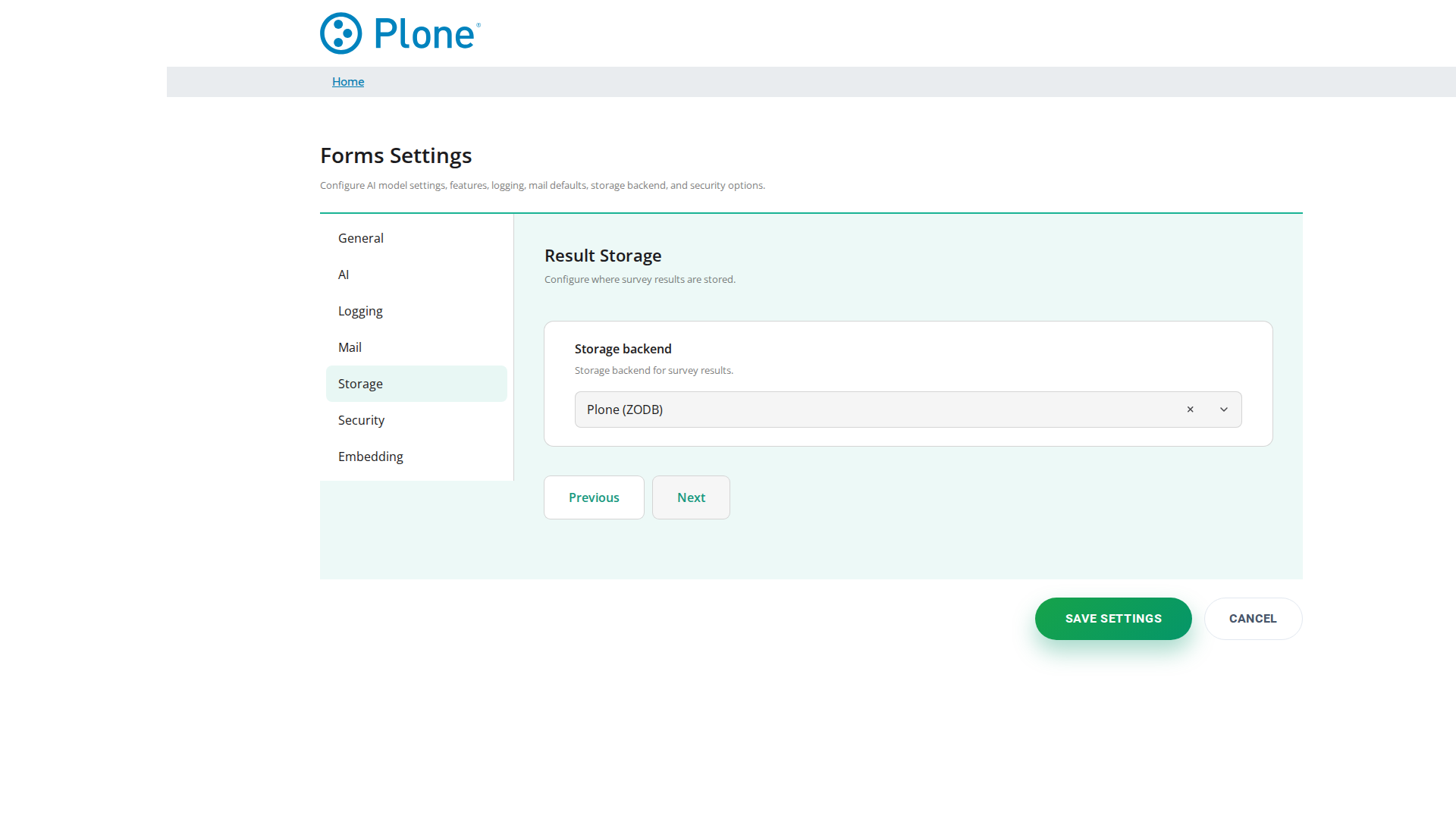
Setting |
Description |
|---|---|
Result storage backend |
Where survey results and access tokens are stored:
|
Database URI |
SQLAlchemy-style database URI for the results database, e.g.
|
Migrating results between backends#
Existing ZODB results can be migrated to the relational backend with the
helper in storage_migration.py (run from a Zope/Plone console script):
from zopyx.surveyjs.storage_migration import migrate_zodb_results_to_rdbms
count = migrate_zodb_results_to_rdbms(context, database_uri="postgresql+psycopg2://user:pass@host/db")
The function copies the stored submissions (with site_id, poll_id
and sequence numbers) into the configured database and returns the number
of migrated rows. Switch the backend in the control panel afterwards; the
two backends are independent, so the ZODB data remains in place as a
backup.
The KV cache backend is configured independently from result storage. It is used for authenticity-token replay protection, trusted-access token metadata, Direct DOM embed-token one-time-use markers, and monitoring data.
Setting |
Description |
|---|---|
KV cache backend |
|
KV cache directory |
Base directory for the |
KV cache database URI |
SQLAlchemy URI for the |
KV cache lock timeout |
Diskcache lock timeout in seconds. Default: |
The cache backend is deliberately not inferred from Result storage
backend. This prevents changing result persistence from unexpectedly
changing security-cache behavior. See DISKCACHE.md in the repository root
for the complete backend, namespace, migration and deployment guidance.
RDBMS driver note#
Selecting rdbms does not install a database driver automatically. SQLite
uses Python’s built-in sqlite3 driver. PostgreSQL requires either
psycopg2/psycopg and MySQL requires either pymysql or
mysqlconnector. The KV facade additionally supports DuckDB through
duckdb-engine and duckdb; DuckDB is not a shared multi-host ZEO
backend. Install the selected driver’s package in the same Python environment
as Plone. See Storage Backends for the complete Result Storage versus KV
support matrix and installation examples.
Security#
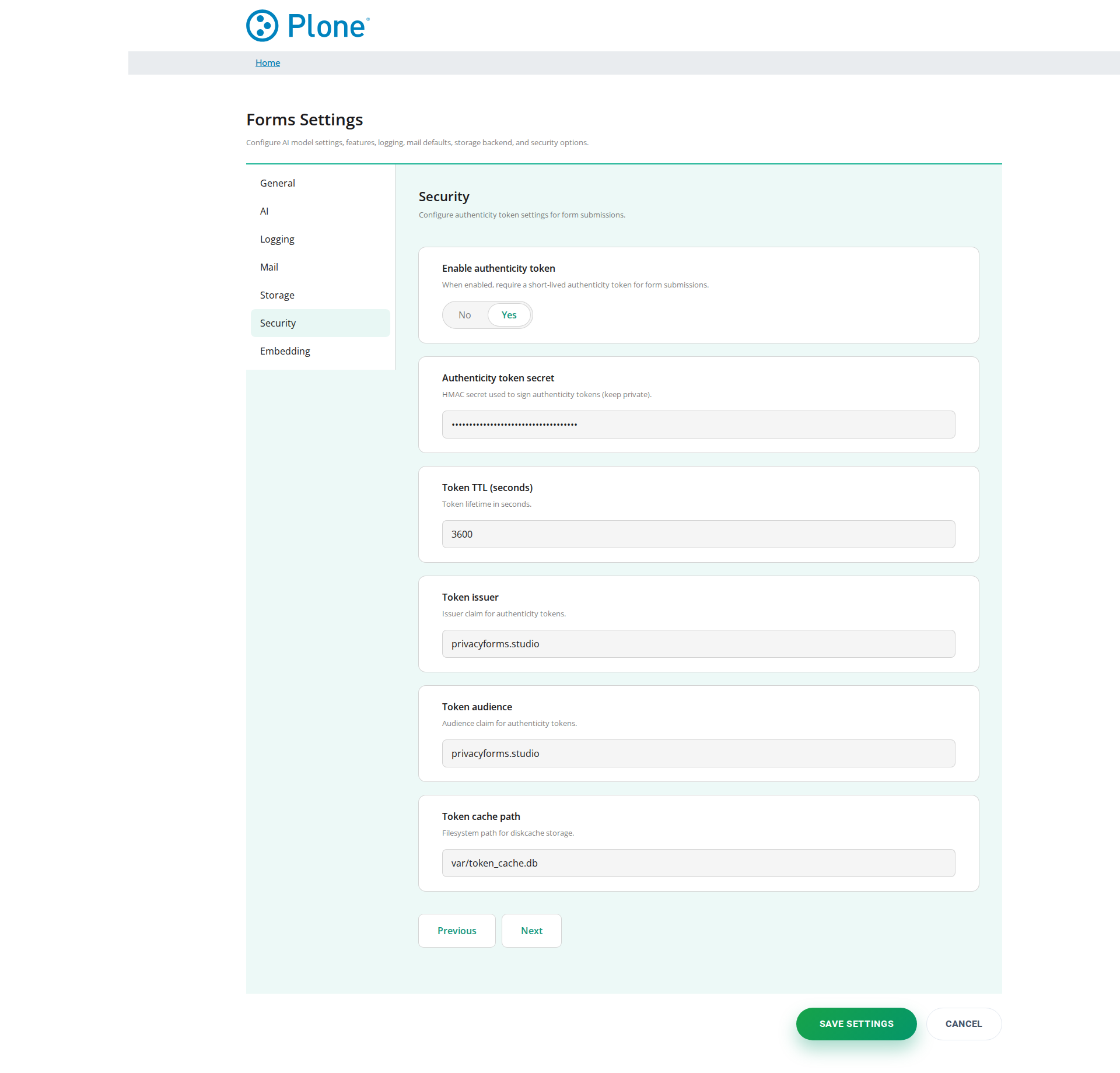
Setting |
Description |
|---|---|
Enable authenticity token |
Require a short-lived authenticity token for every form submission. The token is issued to the visitor when the form is loaded and must be presented with the submission; this prevents unauthenticated and replayed submissions (e.g. scripted bulk posting). Default: on. Disable only when an integration cannot obtain a token. |
Authenticity token secret |
HMAC secret used to sign authenticity tokens. Keep it private and stable: rotating it invalidates all outstanding tokens, so existing visitors would have to reload the form before submitting. |
Authenticity token TTL (seconds) |
Lifetime of authenticity tokens in seconds. Default: |
Authenticity token issuer |
Issuer claim embedded in tokens. Default: |
Authenticity token audience |
Audience claim embedded in tokens. Default: |
POST endpoint validation |
Policy for outbound POST endpoints configured on surveys. |
POST endpoint allowlist |
Hostnames allowed in |
Direct DOM Embedding#
The Direct DOM embedding feature lets external websites embed a survey without an iframe, by injecting the survey directly into the embedding page. It requires all of the following: the global master switch below, a signing key, and per-survey allowed origins (see the Embedding tab on the survey).
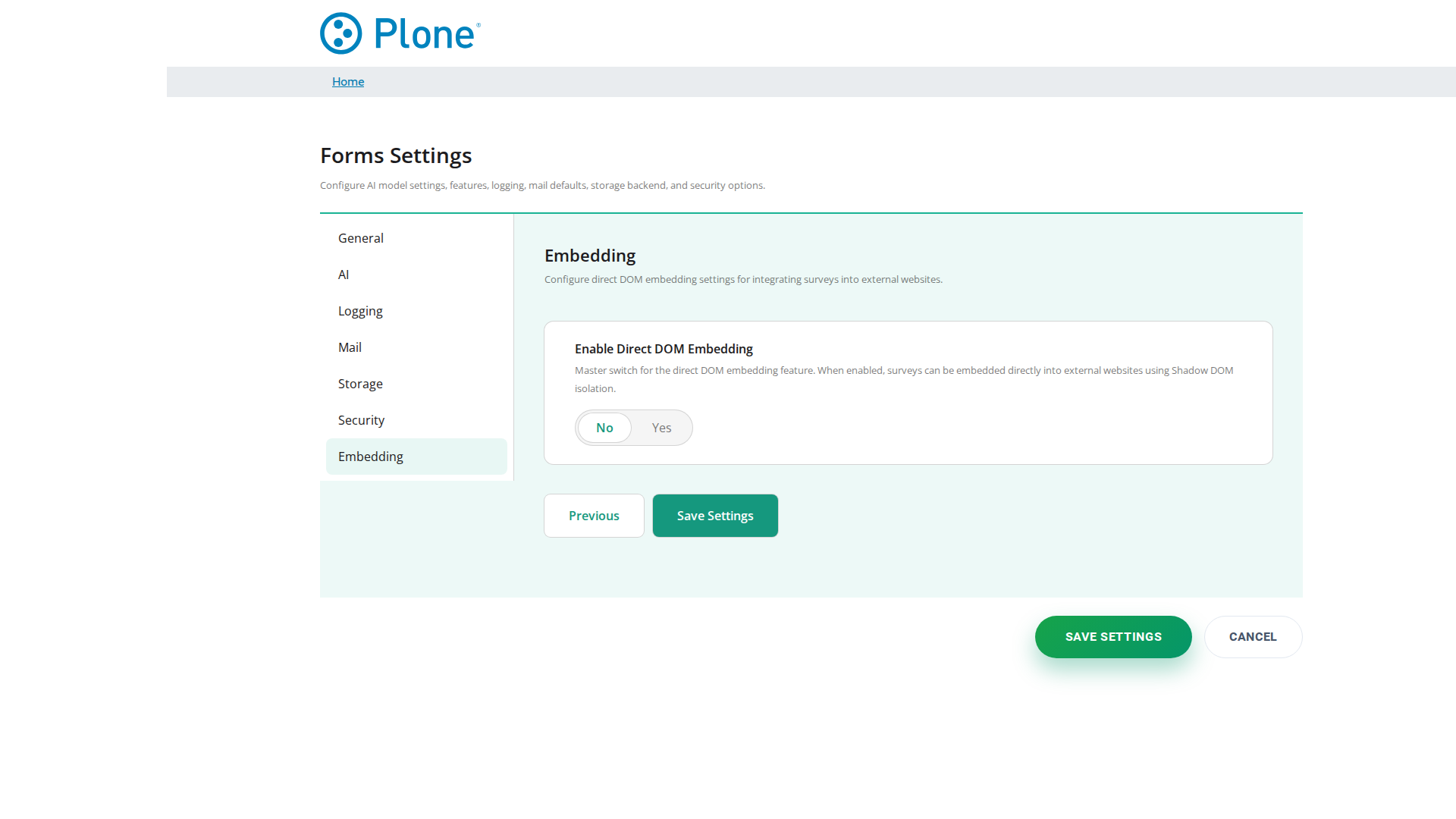
Setting |
Description |
|---|---|
Enable Direct DOM Embedding globally |
Master switch for the whole feature. Default: off. While it is off, no survey can be embedded via Direct DOM regardless of the per-survey Embedding settings. |
Embed Token Signing Key |
HMAC key used to sign embed tokens. Keep it secret and rotate it regularly; rotating invalidates previously issued embed tokens. |
Maximum origins per survey |
Upper limit for the number of allowed origins per survey (default
|