Forms Overview#
The forms overview (@@pfs) is the entry point of Privacy Forms Studio.
It is a role-aware start page that lists the actions you are allowed to
take: create a new form, open the management overviews, or start from a
prepared template. Instead of a plain list of surveys it offers prominent
action cards, so the page works as a guided launcher for both
occasional authors and daily operators.
How to get here#
The site root redirects to the forms overview automatically (
@@root-redirect), so visiting/lands here.You can open it directly at
/@@pfs(folder view of the Plone site).The overview is available to logged-in users; anonymous visitors see an empty state with a sign-in link instead.
What you see#
The page is built from a hero section and a grid of cards. Which cards appear depends on your role:
Hero
The headline “Select an action” with a short explanation. It frames the page as a launcher: choose the guided action that fits what you want to do.
Cards
New form/survey — starts the creation wizard (
@@survey-add). Shown when you may add SurveyJS content (AddSurveypermission).Create from template — pick a prepared template from a searchable dropdown and create a new survey from it in one step. Shown when templates exist and you may add surveys.
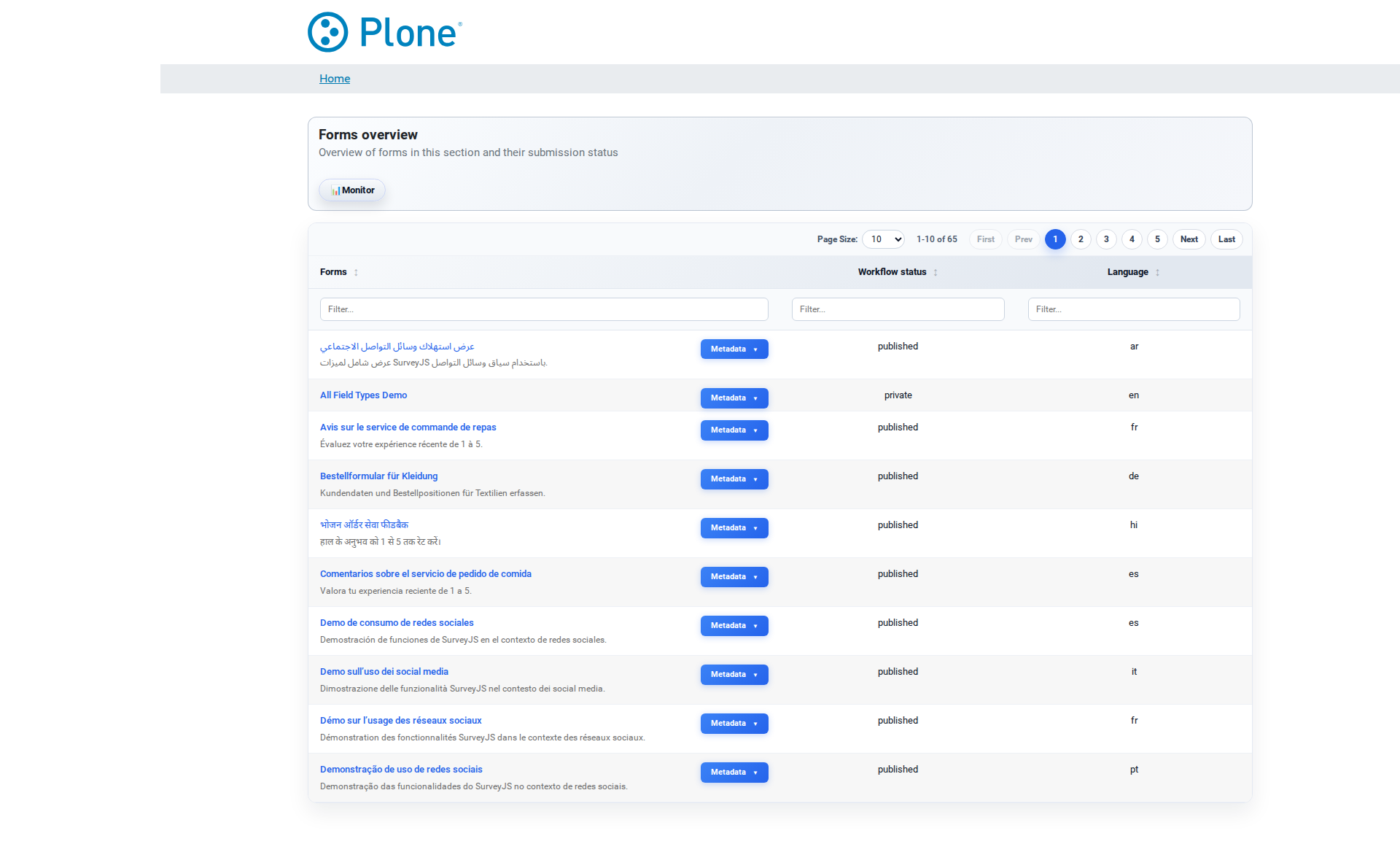
Forms overview — opens the management listing of all surveys (
@@survey-overview). Shown to managers.Templates overview — lists the saved templates (
@@survey-templates-overview). Shown to managers when templates exist.Submission Monitor — real-time submission statistics and graphs (
@@survey-monitor). Shown to managers.Administration — opens the global Forms control panel (
@@forms-settings) for site-wide settings. Shown to managers.
Empty state
If you have no permission to create content and are not a manager, the page explains that no actions are available and offers the sign-in link. This is normal for a read-only account.
What you can do#
Create a new survey#
Click the New form/survey card.
Follow the creation wizard (see below): enter a title, choose the languages and the basic settings.
The survey appears in the forms overview and is ready for editing.
Create a survey from a template#
In the Create from template card, type into the search field to filter the template list (or use the native dropdown).
Select a template.
Click Create form. The new survey is created next to the template in the current workspace, pre-filled with the template’s form definition and settings.
Templates are copies: later changes to the template do not affect the survey you created. See Templates for the full template workflow.
Jump into management#
Forms overview (
@@survey-overview) — the management table of all surveys; useful for finding, sorting and opening surveys.Templates overview — browse the template pool.
Submission Monitor — watch submission rates and usage across all surveys.
Administration — the global control panel (Site Setup > Forms).
Tips & notes#
The card set adapts to your permissions — you only ever see actions you can actually perform. If a card is missing, your account lacks the corresponding permission (ask a site manager).
The page is the recommended hub for day-to-day work: create from a template when you want a standardized start, use the wizard when you build from scratch.
The “Create from template” form submits to the same page (POST); the new survey is created in the current folder.