AI Generator#
The AI generator (@@ai) builds SurveyJS forms from natural language.
Describe what you need — “a customer satisfaction survey with 10
questions” — and the AI produces a complete, editable form draft. You can
refine the draft in a chat loop, upload a document to convert (PDF, DOCX,
ODT, HTML), preview the result and finally store it as a new form
version. The published survey is untouched until you explicitly promote
the draft.
How to get here#
From the survey landing page, click AI.
Directly at
/my-survey/@@ai.The AI feature must be enabled globally (default: on) and an AI provider must be configured (Site Setup > Forms → AI). If no provider is configured, the screen explains this instead of offering generation.
What you see#
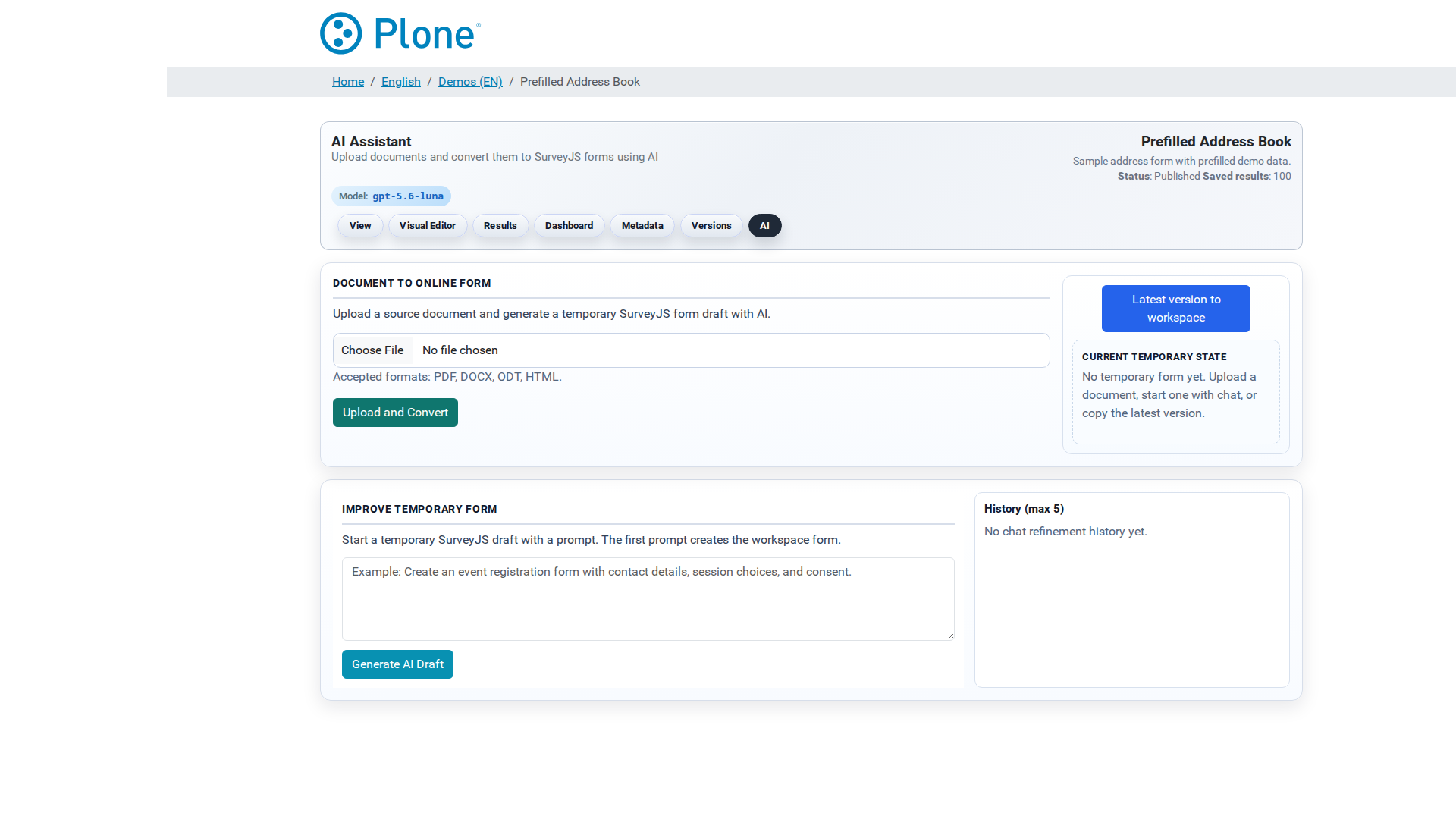
Survey header — the shared navigation, the headline “AI Assistant — Upload documents and convert them to SurveyJS forms using AI”, and a model badge showing which LLM is active (e.g. the Ollama model or the custom model name).
Document To Online Form (left panel)
Upload a source document (
.docx,.odt,.html) and click Upload and Convert — the AI rebuilds the document as an online form. For fillable PDFs the form fields are extracted and mapped into the generated survey.
Action pane (right panel)
Latest version to workspace — copies the survey’s current active form into the temporary workspace. This is the recommended starting point for refinements: you improve the existing form instead of starting from zero.
Clear workspace — discards the draft and its history. There is no undo.
Preview form — opens the draft in a SurveyJS preview modal, so you can test it before storing.
Store as new version — promotes the draft: it becomes a new form version and the active form of the survey. The workspace is cleared.
Below the buttons, the Current Temporary State box tells you whether a draft exists and what you can do with it.
Improve Temporary Form (chat section)
A prompt textarea plus a submit button. With an empty workspace the button reads Generate AI Draft (creates the first draft); with an existing draft it reads Apply AI Change (returns the full updated form). Example prompts are shown as placeholders (create an event registration form; add a contact-preferences section and make e-mail required).
History (max 5) (right of the chat)
The last five refinement steps, each showing how many steps back it is and the prompt that produced it. Use the revert button to restore a previous state; the delete button (on the newest entry) removes it.
What you can do#
Generate a new form from scratch#
Open
@@ai.Type a prompt into the chat field: describe the purpose, the sections and any requirements (question types, required fields, languages).
Click Generate AI Draft.
Preview the result, refine it further, then store it.
Refine the existing form#
Click Latest version to workspace — the current form becomes the working draft.
Describe the change (“change the rating questions from 1–5 to 1–10 and make the e-mail field required”).
Click Apply AI Change. Each prompt builds on the latest draft; the previous states are kept in the history for reverting.
Preview, iterate, and finally Store as new version.
Convert a document#
Upload a PDF, DOCX, ODT or HTML file.
Click Upload and Convert. The AI rebuilds the document’s structure (grouping, section order, tables) as an online form; fillable PDF fields are mapped to survey questions.
Review the draft in the preview, refine with chat prompts if needed, then store it as a version.
Promote the draft#
Store as new version makes the draft the survey’s active form. The change is visible immediately in the viewer; the version history keeps the previous versions (see Form Versions).
Tips & notes#
The workspace is separate and per survey — drafts live in a temporary area, not in the version history. Promote drafts you want to keep; Clear workspace removes them permanently.
Good prompts make good forms — mention the question types, the required fields and the tone. The global “Prompt before / Prompt after” settings (Site Setup > Forms → AI) add site-wide rules to every generation.
Larger models produce structurally better forms but are slower and costlier; start with the provider default.
AI output is a draft — always preview and check the result before storing it as the live form. The editor remains the tool for fine adjustments after AI generation.
If generation fails with an invalid-JSON error, retry or simplify the request; a model that is too weak is the usual cause (see the troubleshooting section in AI Generator).