Survey Settings#
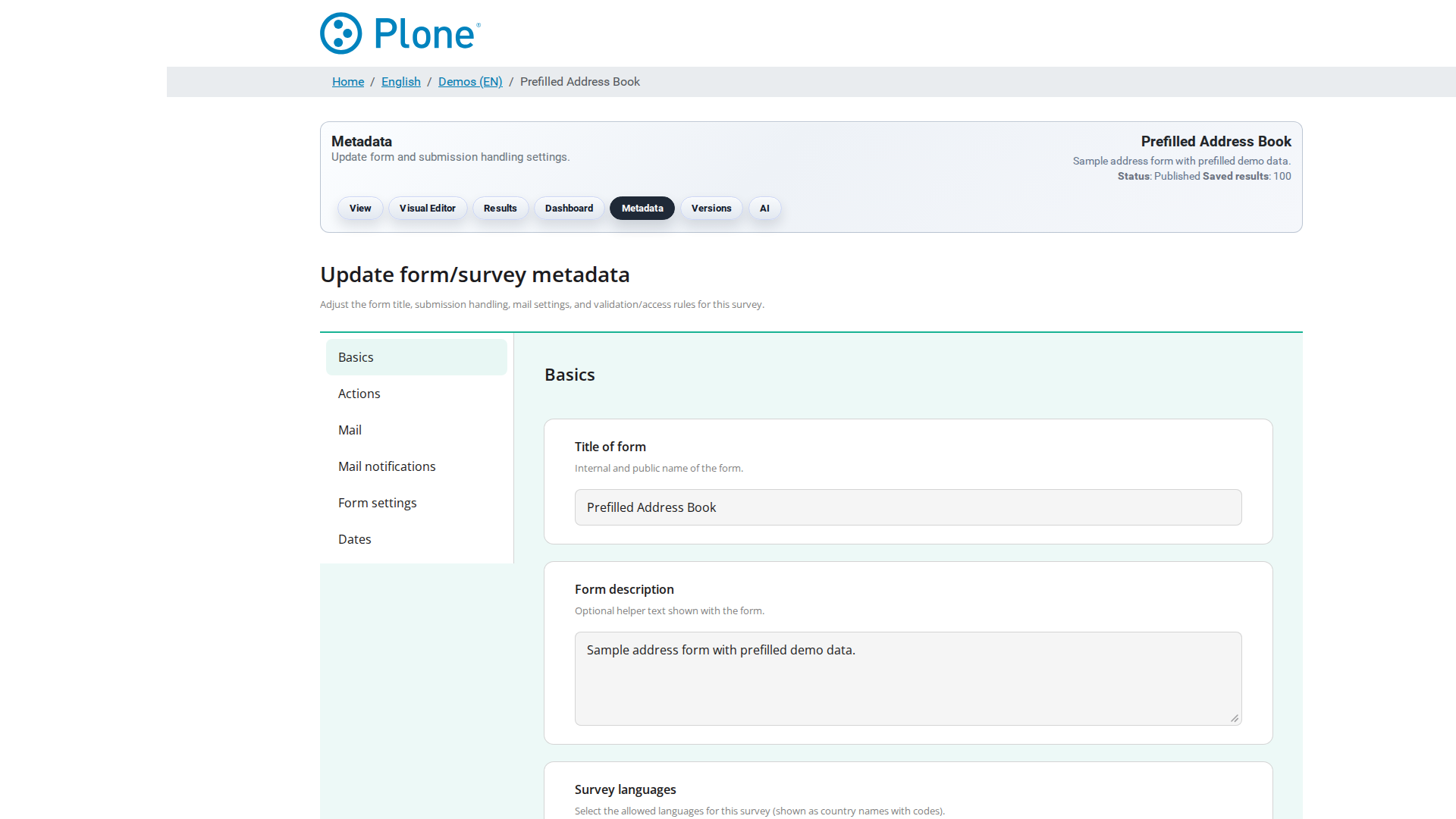
The survey’s settings screen (@@survey-metadata) is the edit form for
everything that configures how the survey behaves: which actions run on
submission, who may submit, how validation and embedding work, and which
languages are offered. It is a SurveyJS-based form with several
fieldsets; the same screen is used when a survey is created in the
wizard, so the options described here apply to new and existing surveys
alike.
How to get here#
From the survey landing page, click Metadata.
Directly at
/my-survey/@@survey-metadata.The screen requires the Modify portal content permission.
What you see#
The form opens with the shared survey header (“Metadata — Update form and submission handling settings.”) and the fieldset wizard below it. Navigate the fieldsets with the Next/Back buttons at the bottom; each fieldset groups related settings:
Basics
The survey’s title and description — the identity shown in the header and in listings.
Dates
Standard Plone fields: effective and expiry dates that define the publishing window of the survey (shown in the status bar on the landing page).
Actions
What happens with each accepted submission — a multi-select of
store,mail-notificationandpost, plus the POST endpoint URL. Every selected action runs for every submission; they are independent, not alternatives. See Actions for the full semantics.
E-mail sender, recipient (single address), CC/BCC lists, subject, body and the export formats attached to result e-mails. Used by the
Mail notifications
Subject and body of the lightweight notification e-mail (no attachments) sent by the
mail-notificationaction. Placeholders:{title},{detail_url},{poll_id}.
Form Settings
The security- and validation-relevant options:
Force Server Side Validation (default on) — every submission is re-validated by the external validator binary; tampered payloads are rejected even if the client never validated.
Max size payload (MB) (default 1) — hard limit for submission payloads; oversized requests get HTTP 413 before parsing. Raise it for file-upload surveys.
Access mode —
public(anyone with the URL),trusted(requires a trusted access token in the URL) ortrusted-tokens(single-use tokens, each consumed by the first successful submission).Trusted access token TTL (hours) (default 168) — lifetime of cached trusted tokens.
Survey languages
Restrict the languages offered in the viewer. Empty = all supported languages. When restricted, visitors only see the listed languages in the language selector.
Embedding
Whether and how the survey may be embedded in external websites:
none,iframe(recommended, secure), ordirect(experimental Direct DOM embedding with origin allowlist and embed token TTL).
PDF Form / Fillable PDF
Upload a fillable PDF form (visitors download, fill and submit it) or a fillable PDF template (offered in the fillable-PDF screen for filling in the browser; values come from the fill form, not from stored responses).
The full field reference (every field, its type, default and a detailed description) is in Survey options; the global site-wide defaults live in the Forms control panel (see Global options).
What you can do#
Change the survey’s behavior#
Open
@@survey-metadata.Navigate to the fieldset you need with Next (or Back to go back).
Change the values. Examples:
Enable the
mailaction and fill in recipient and subject so that every submission is e-mailed as an export attachment.Switch the access mode to
trustedand share generated links instead of the public URL (see Security).Raise the payload limit when the survey collects file uploads.
Restrict the survey languages to the ones your audience speaks.
Click Save changes. The survey is updated immediately; the public viewer reflects the new settings (for example, a new access mode or language set).
Add or replace a fillable PDF#
Use the PDF Form / Fillable PDF fieldset to upload the PDF files.
After saving, manage and fill the template in @@fillable-pdf (see
Fillable PDF).
Tips & notes#
Actions are additive — combining
store+postkeeps a local copy and mirrors it to a webhook;store+maile-mails every submission to a reviewer (see Actions).Mail settings are validated lazily — an incomplete mail configuration is logged, not shown to visitors; check the Plone logs if expected mails do not arrive.
Access mode changes affect the viewer immediately — switch to
trustedand the public URL shows the “Access Required” state; you must generate and distribute access links.The wizard for new surveys (
@@survey-add) uses the same fields plus the basic creation step — see Quick Start.