Form Versions#
Every time the form is saved (from the editor, the AI generator or a JSON
upload), a new form version is created. The versions screen
(@@form-versions) lists that history and lets you preview, restore,
lock, download, delete or turn a version into a reusable template. It is
the safety net of form design: no change is ever lost, and any previous
state can be brought back.
How to get here#
From the survey landing page, click Versions.
Directly at
/my-survey/@@form-versions.The view requires the Modify portal content permission.
What you see#
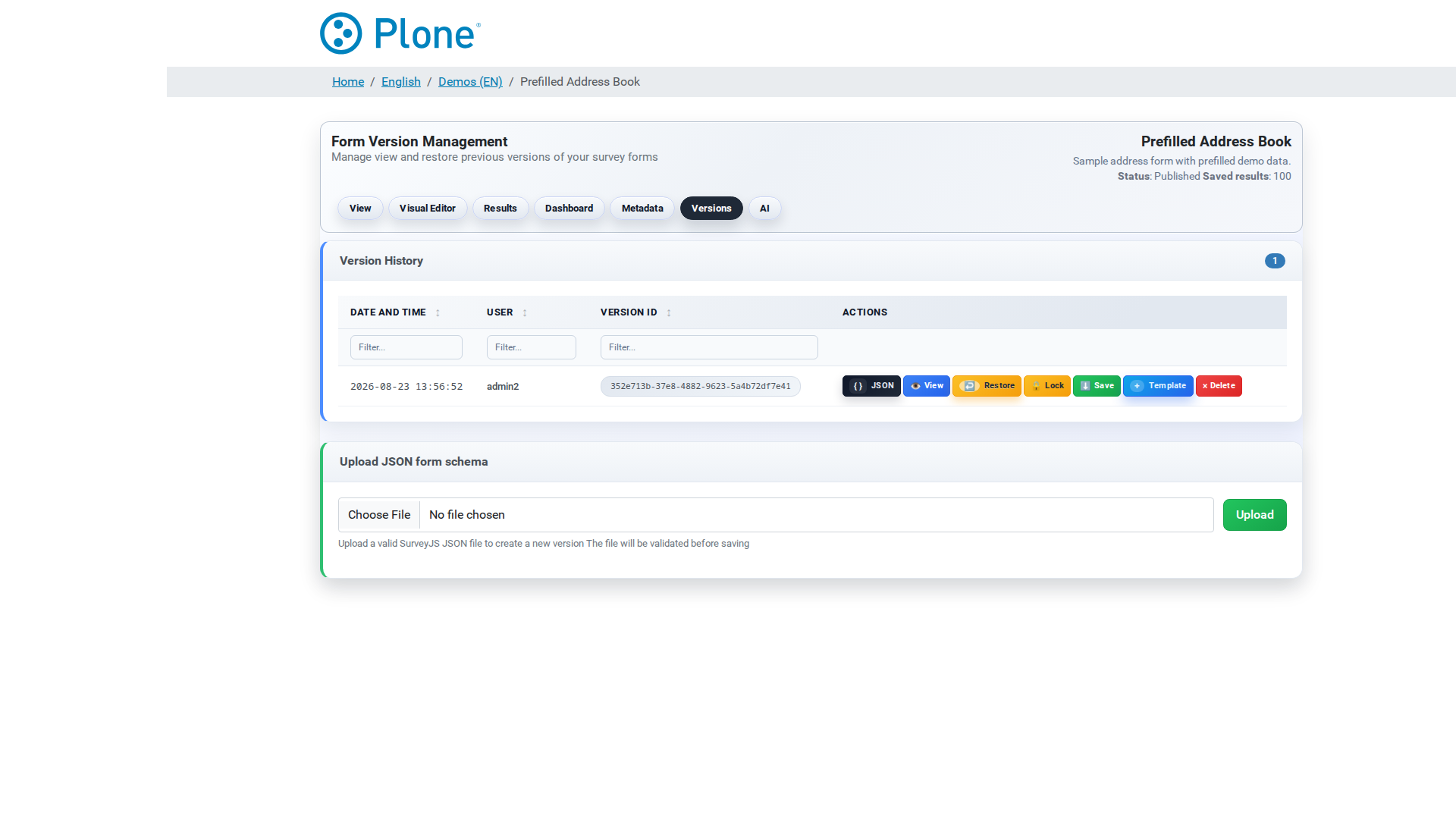
Survey header — the shared navigation with the headline “Form Version Management — Manage, view, and restore previous versions of your survey forms.”
Version History (table)
One row per version with the columns:
Date/Time — when the version was created (
YYYY-MM-DD HH:MM:SS).User — who created it.
Version ID — the technical id; a Locked badge marks locked versions.
Actions — the per-version buttons (see below).
The panel title shows the total number of versions. With no versions yet, an empty state suggests designing the first form or uploading a JSON file.
Per-version actions
JSON — opens the raw form JSON of this version in a viewer modal.
View — renders the form in a SurveyJS preview modal: test the version as respondents would see it.
Restore — reverts the survey to this version. Restoring does not delete anything: it creates a new version from the selected snapshot and keeps the whole history (including the version you restore from).
Lock / Unlock — protects a version from deletion. Locked versions cannot be deleted; unlock to delete them.
Save — downloads the version’s JSON as a file (backup or export).
Template — creates a reusable SurveyTemplate from this version (see Templates); a dialog asks for the template name. The template is created next to the current survey.
Delete — permanently removes the version (only available for unlocked versions; a confirmation dialog warns that this cannot be undone).
Upload JSON form schema (panel below the history)
Upload a SurveyJS JSON file to create a new version from it. The file is validated before saving — invalid JSON is rejected with an error.
What you can do#
Restore an earlier state#
Find the version in the history (use View to check what it looks like first).
Click Restore.
Confirm in the dialog (it shows the version id, user and date, and explains that the current version stays in history).
The restored form becomes the active form; a new version entry appears in the history. The public viewer now serves the restored form.
Protect or remove versions#
Lock a version to keep it as an immutable reference point (e.g. the version that was used for a published campaign).
Unlock and Delete to prune history you no longer need. Deleting is permanent — locked versions are exempt.
Upload a form from JSON#
In the upload panel, select a
.jsonfile with a valid SurveyJS schema.Click Upload. A new version is created and becomes the active form.
Create a template from a version#
Click Template on the version you want to reuse.
Enter a name for the template and confirm.
The template appears in the templates overview and can be used as the starting point for new surveys (see Templates).
Tips & notes#
Versions are append-only in practice — every save adds a version; the current form is always the newest entry. Deleting a version never changes the active form unless you delete the newest one.
Restore keeps the history — there is no “replace”; restoring is a safe operation that can itself be undone by restoring again.
The editor creates a version on every save; the AI generator creates one when you “Store as new version” (see AI Generator).
The form version is recorded with every stored submission — the results reference the version the respondent actually answered (see Results).