Public Viewer#
The public viewer (@@viewer) is the face of the survey: it renders the
form for visitors, collects the answers and submits them. This is the URL
you distribute to respondents — share it, link it, or embed it (see
Embedding). The same view serves anonymous visitors and logged-in
submitters; editors additionally see a toolbar and the survey header.
How to get here#
From the survey landing page, click View.
Directly at
/my-survey/@@viewer— this is the link to distribute.The viewer is registered for survey templates as well, so you can preview a template exactly as respondents would see it.
What you see#
The form itself
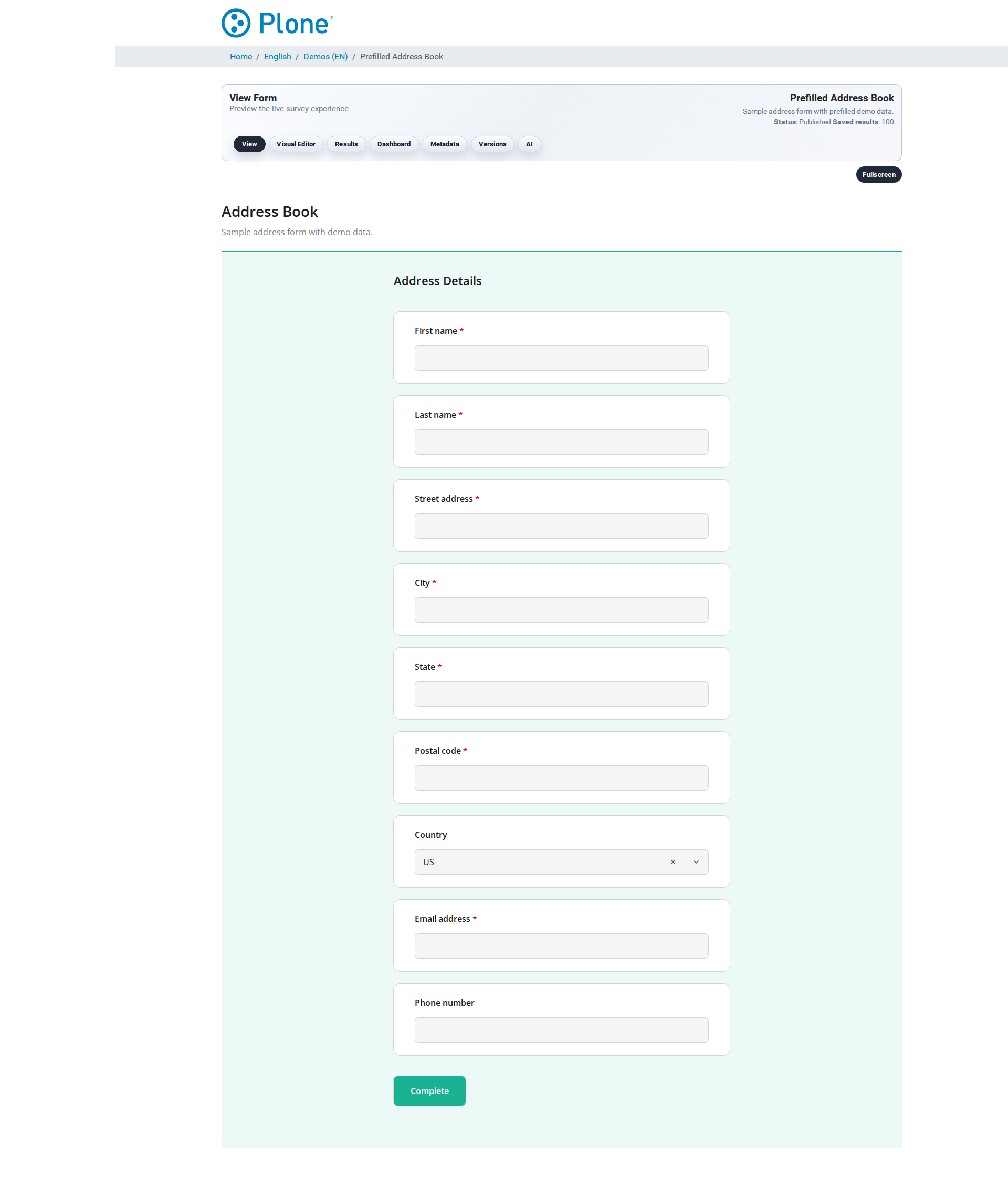
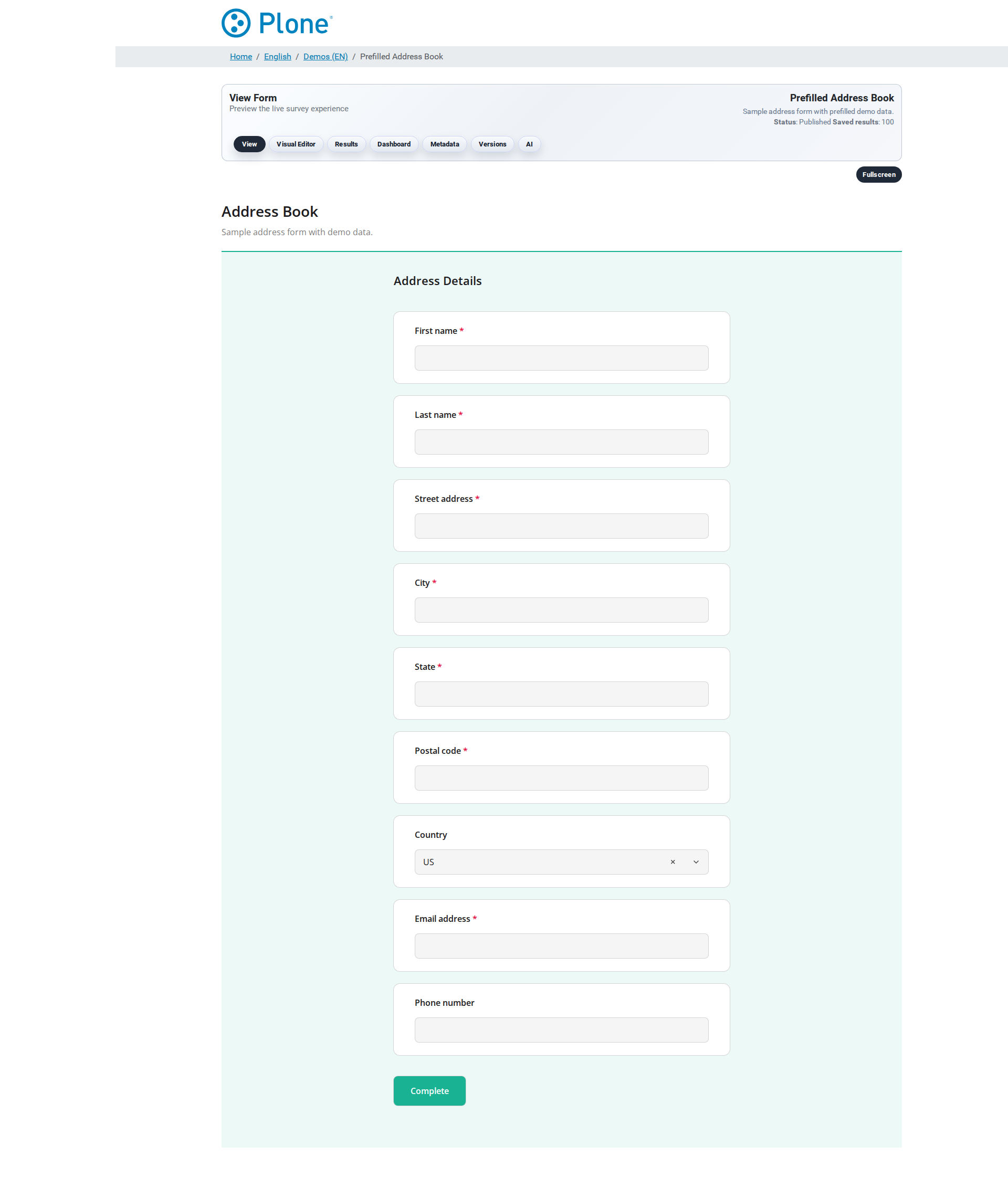
The SurveyJS form, rendered with the survey’s design: pages with questions, validation, logic (visible/hidden questions) and the navigation (Next/Back/Complete) — exactly what you built in the editor.
Language selector (top toolbar)
A dropdown offering the survey languages. Available languages depend on the survey’s Survey languages setting: when languages are restricted, only those are offered; when the setting is empty, the full set of supported languages (English, Deutsch, Italiano, Français, Polski, Русский, Srpski, Türkçe, Tiếng Việt) is shown.
Fullscreen toggle (top toolbar)
Expands the form to fill the browser window — useful for presentations or when the survey should not compete with the Plone chrome around it.
Survey header (editors only)
Logged-in users with editing rights see the survey header with the navigation bar and the status line (“View Form” / “Preview the live survey experience”). Anonymous visitors see only the form.
Trusted access panels (editors/managers only, restricted surveys)
When the survey’s access mode is restricted, the viewer shows a panel for generating and sharing access:
trustedmode — Trusted access link: a button generates a link containing the access token; the panel shows URL, token and expiry, with a Copy link button.
trusted-tokensmode — Token-based access: an explanation pointing to the Token Management page (@@token-store) where single-use tokens are generated and distributed.Respondents never see these panels.
Error states (restricted surveys)
When a visitor opens a restricted survey without a valid token, the viewer shows a friendly explanation instead of the form:
Access Required — no token in the URL (the survey needs a secure access link).
Link Expired or Invalid — the token expired or was already used.
Access Revoked — the token was revoked by the owner.
Service Temporarily Unavailable — the token cache is not reachable (the system fails closed).
Access Denied — generic fallback.
Each state explains what the visitor can do (request a new link, check the URL, contact the form owner).
What happens when a visitor submits#
The browser sends the answers (
pollResult) to@@save-polltogether with the authenticity token that was issued when the form was loaded.The server checks the payload size limit (surveys with a 1 MB default; oversized requests are rejected with HTTP 413 before any parsing), the access mode and the token (see Security).
When Force Server Side Validation is enabled (the default), the payload is re-validated against the form schema by the external validator — tampered or malformed payloads are rejected even if the browser never validated them.
The enabled actions run (store, mail, mail-notification, post — see Actions) and the visitor sees the survey’s completion page.
Good to know:
One submission per form load: the authenticity token is bound to the form version and can only be used once (replay protection). After submitting, the visitor must reload the form to submit again.
Publishing a new form version invalidates outstanding tokens — nobody can submit against a stale form schema; visitors simply reload.
Action failures never block the visitor: if a notification mail cannot be sent, the submission is still accepted (see Actions).
Tips & notes#
Always test the public viewer logged out (or in a private browsing window) — the editor chrome hides the anonymous experience.
The URL you share should be the plain survey URL or
@@viewer; editors see the same page with additional chrome, respondents do not.For restricted surveys, distribute the generated access links (see Security), never the bare survey URL — it shows the “Access Required” state to anyone without a token.
To embed the survey in an external page, use the embedding features (
@@viewer-embedfor iframes, Direct DOM for seamless integration) — see Embedding.