Quick Start#
Create a survey — in the forms overview use the add action and follow the creation wizard (
@@survey-add): give the survey a title, choose the languages and the basic settings. The survey appears in the forms overview (@@pfs).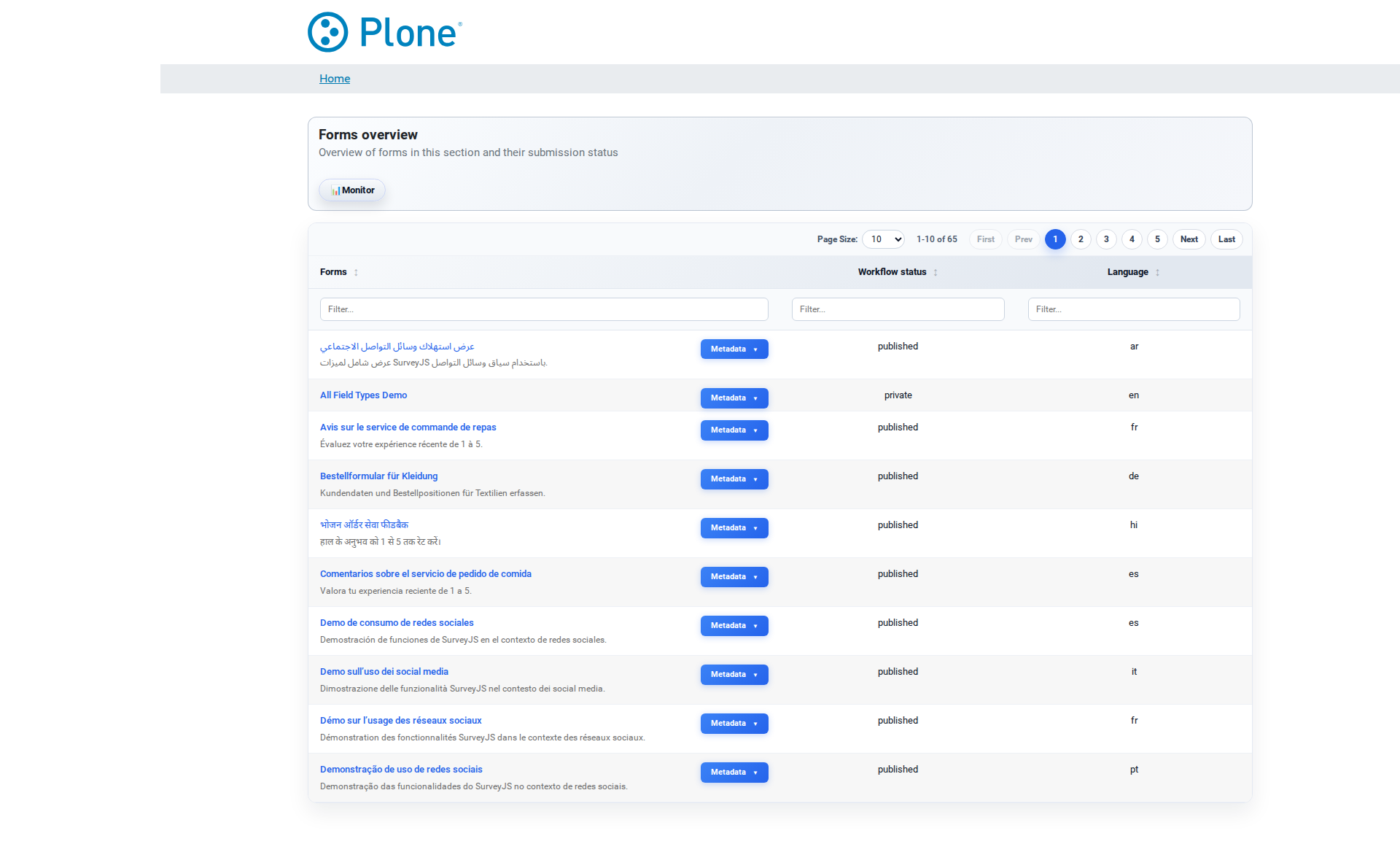
Design the form — open the survey and start the editor (
@@editor). The SurveyJS Creator lets you drag question types onto the page, configure validation, layout and logic, and preview the result — everything is saved as JSON automatically.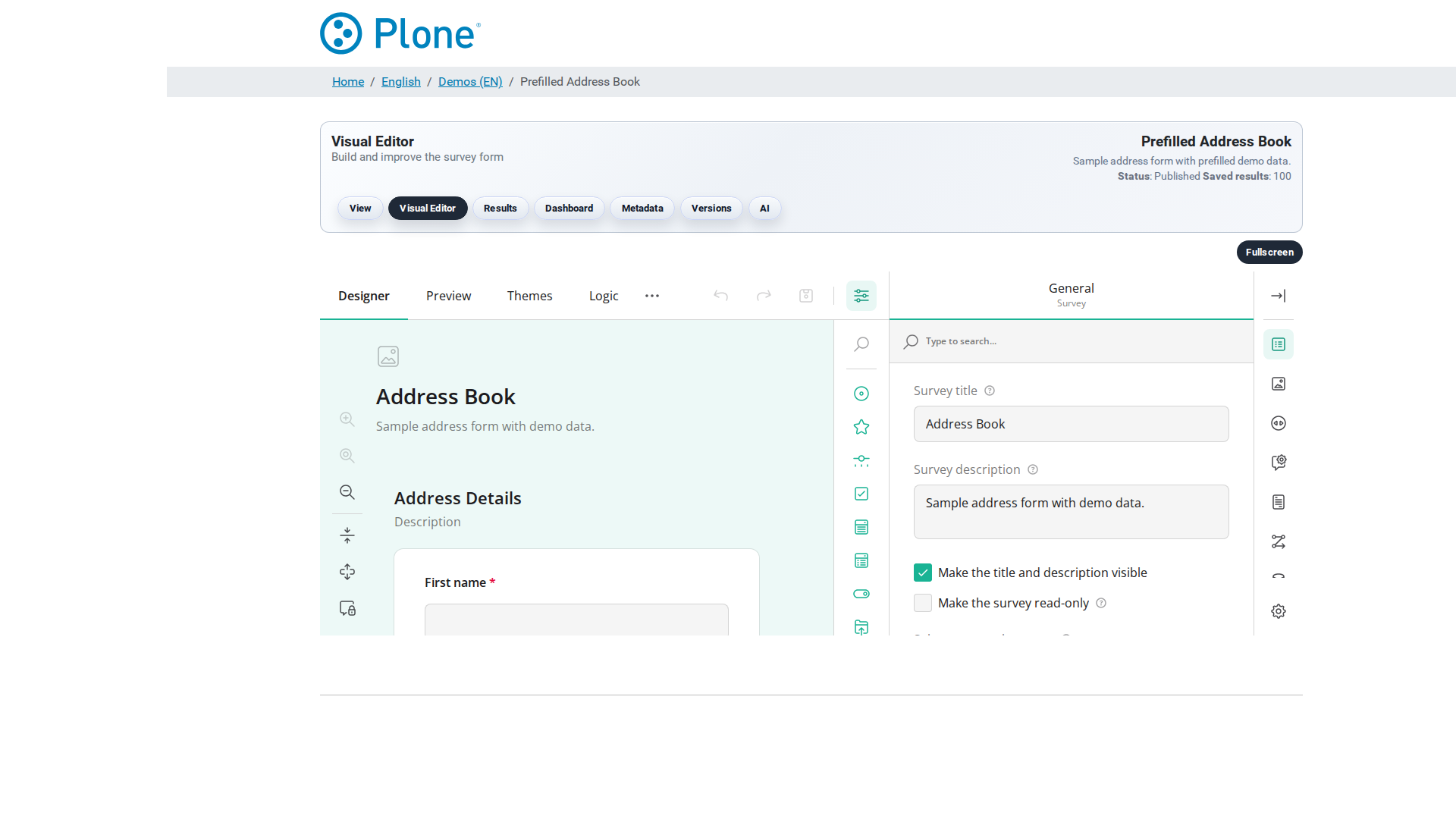
Configure the survey — in the survey’s edit form set the actions (store, mail, notifications, POST — see Actions), the form settings (validation, payload limit, access mode) and, if needed, the mail settings and embedding options (see Survey options).
Publish and share — make the survey visible to its audience and distribute the survey URL (
@@viewer). For restricted surveys, generate trusted access links (see Security); for external sites, see Embedding.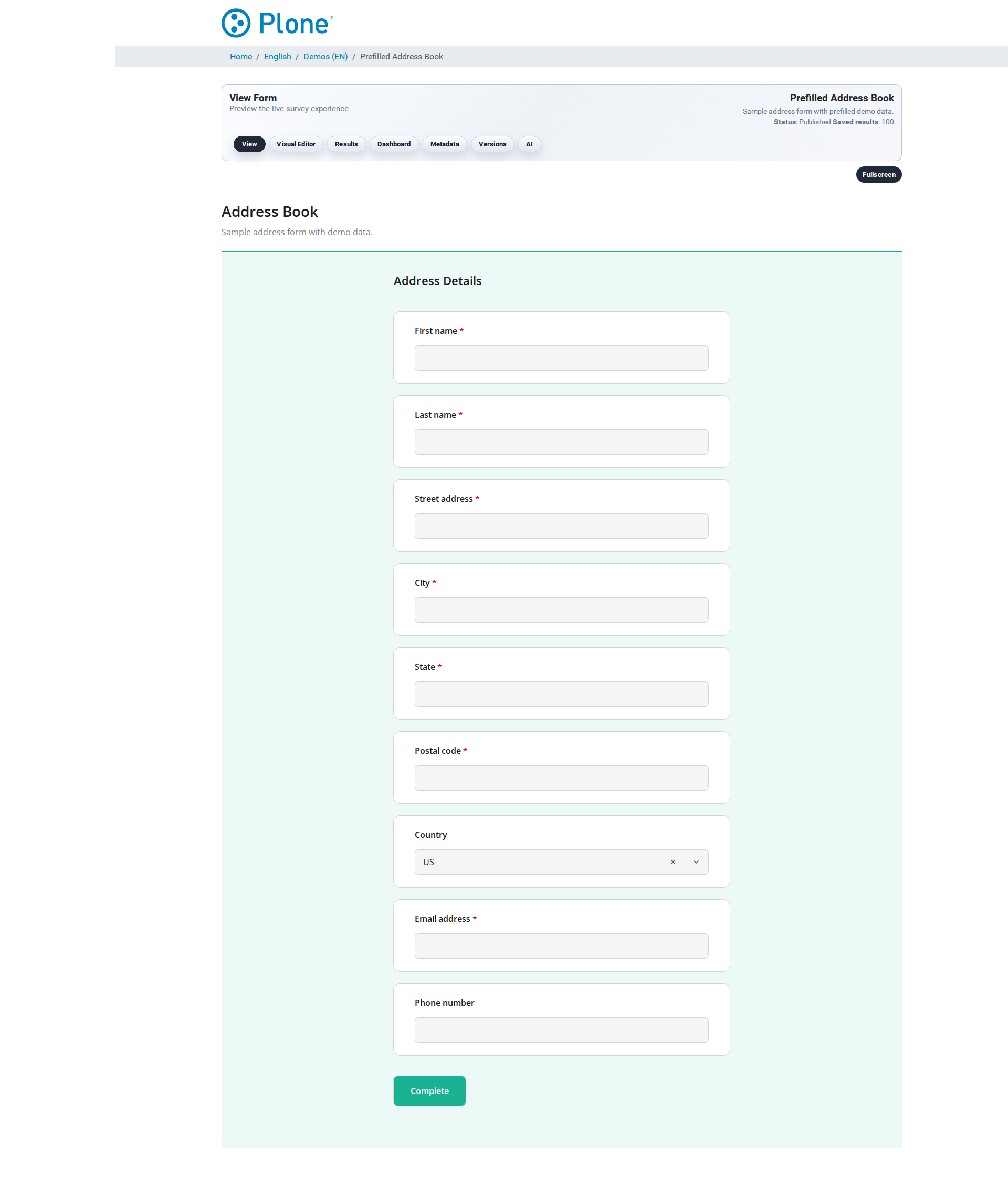
Review the results — open
@@resultsto search, inspect and export the submissions; use the dashboard for an overview (see Results and Exports).