Survey Landing Page#
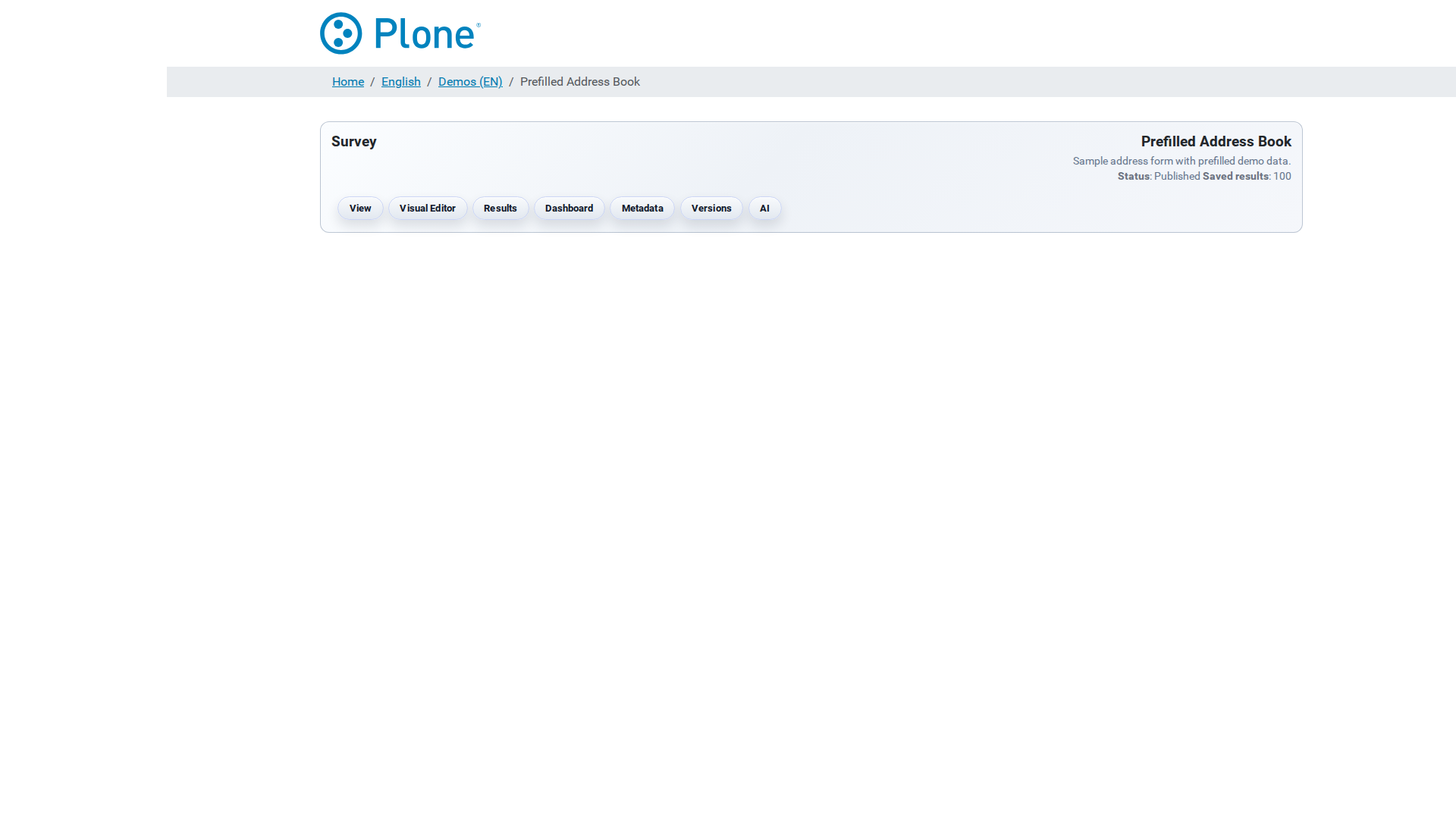
Every survey has a landing page (@@view-main) that acts as the hub for
working with that single survey. It shows the survey’s title and status
and carries the navigation bar that takes you to all survey tools — the
viewer, the editor, the results, the dashboard, the settings and more.
Think of it as the “home screen” of one form: from here you reach every
screen that belongs to the survey.
How to get here#
Click a survey in the forms overview (
@@survey-overview) or on the survey itself in Plone.Open it directly at
/my-survey/@@view-main.The navigation bar on this page is the same survey header that appears on all survey screens (editor, results, dashboard, versions, …), so you can switch between tools from anywhere.
What you see#
Survey header
The top region of the page is shared by all survey screens:
Title and description — the survey’s title (and description, if one is set) as defined in the survey’s settings.
Status bar — shown to editors and managers:
Status — the Plone workflow state of the survey (e.g. published or private). A survey must be visible to its audience before visitors can use it.
Effective / Expires — the publishing window, if set. Outside this window the survey is not available.
Stored results — how many submissions are currently stored for this survey.
Navigation bar
The action buttons link to the survey tools. Buttons are highlighted (
is-active) on the screen you are currently on:
View — the public survey form (
@@viewer). This is what visitors see and use to submit.Visual Editor — the SurveyJS Creator for designing the form (
@@editor).Results — the stored submissions (
@@results).Dashboard — statistics and charts for the submissions (
@@dashboard; only shown when thedashboardfeature is enabled).Metadata — the survey’s settings (
@@survey-metadata).Tokens — trusted-access token management (
@@token-store; only shown for managers when the survey uses thetrusted-tokensaccess mode).Versions — form version history (
@@form-versions).Fillable PDF — PDF template management (
@@fillable-pdf; only shown when thefillable-pdffeature is enabled).Chatbot — the documentation chatbot (
@@chatbot; only shown when thechatbotfeature is enabled; marked Beta).AI — the AI form generator (
@@ai; only shown when theaifeature is enabled).The feature-dependent buttons (Dashboard, Fillable PDF, Chatbot, AI) disappear site-wide when the corresponding global “Features enabled” switch is turned off — see Global options.
What you can do#
Preview the live form — click View to open the public viewer. This is also the URL you distribute to respondents.
Design the form — click Visual Editor to open the SurveyJS Creator (see Editor).
Configure the survey — click Metadata to open the survey’s settings form (see Survey Settings).
Review submissions — click Results or Dashboard.
Manage versions — click Versions to see the form history, restore or lock versions (see Form Versions).
Ask the assistant — use Chatbot for questions about the software, or AI to generate and refine forms with the LLM.
Tips & notes#
The status bar gives you the two facts you need before publishing: is the survey published, and is it collecting results?
The survey’s effective/expiry window and workflow state are standard Plone features; they are configured in the survey’s Plone edit form (Dates tab / State menu).
If a navigation button is missing, the feature is either disabled site-wide or your role does not grant access.