Results#
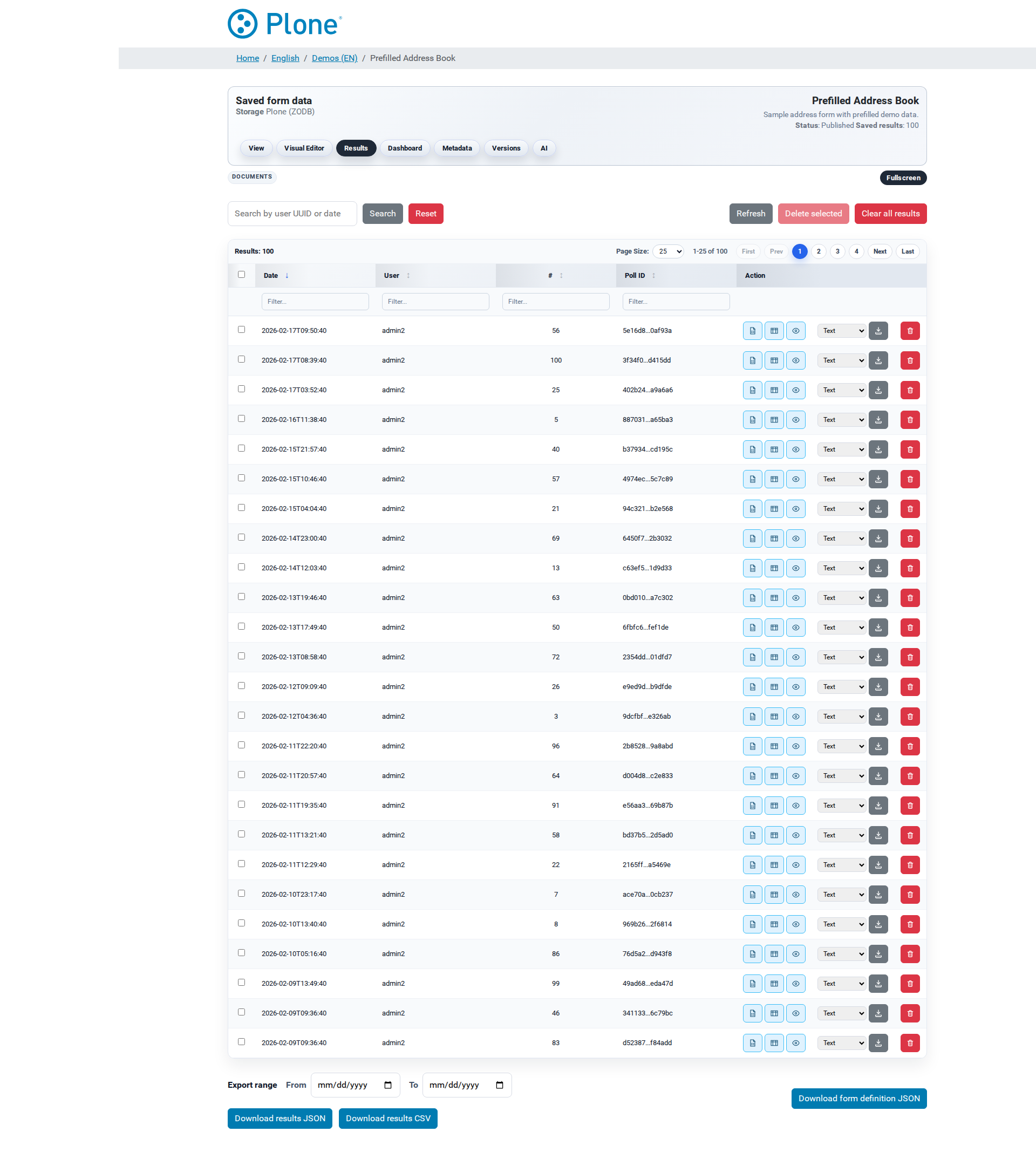
The results view (@@results) is the workhorse of the results
workflow: a searchable, filterable table of every stored submission, with
per-row actions (inspect, export, mail, re-POST, delete) and bulk
operations (export everything, clear everything). It is the place to
answer “what did people answer?” — and to get the data out of the system.
How to get here#
From the survey landing page, click Results.
Directly at
/my-survey/@@results.The view requires the Modify portal content permission (Editor role or higher).
The screen header shows which storage backend is in use (ZODB or relational database).
What you see#
Survey header — the shared navigation with the headline “Stored form data” and the storage backend in the subtitle.
Storage warning — when the survey’s store action is disabled, a
banner explains that results are not being saved; the table stays empty.
Enable the action in the survey settings to collect results.
Toolbar
Search — free-text search across user, UUID and date; Search executes, Reset clears the filter.
Refresh — reloads the data.
Delete selected — removes all selected rows at once (Managers only; the checkbox column is visible to them).
Clear all results — deletes everything; the confirmation dialog requires typing
clearto proceed. There is no undo.
Grid
A table (Tabulator) with columns for date, user, sequence number and poll id, plus the per-row action buttons. Large result sets are paginated; the pager row above the grid shows the total count.
Per-row actions
JSON — the raw submission payload in a modal.
Table — the payload rendered as a readable table; question labels come from the current form schema.
Details — the full HTML detail page (
@@result-detail).Download — export this single submission in a selectable format.
Mail — e-mail this submission as an export attachment (only shown when the survey has the
POST — re-forward this submission to the survey’s POST endpoint (only shown when the
postaction and an endpoint are configured).Delete — remove this single submission (Managers only).
Export row (footer)
Export range — optional
From/Todate filter for the bulk downloads (a warning appears if “To” is before “From”).Download results (JSON) — all submissions with metadata (
poll_id,created,user,form_version).Download results (CSV) — the same data as a spreadsheet-friendly table, one column per answer field.
Download form definition (JSON) — the current form schema (independent of the results).
What you can do#
Find a submission#
Type into the Search field (user, UUID, date) and click Search.
Browse the grid; use the pager for large result sets.
Reset to start over.
Inspect a submission#
Click Table for a readable rendering of the answers (matrix questions as nested tables).
Click Details for the full detail page with the available export formats.
Click JSON for the raw payload — the exact data as stored.
Export data#
Single submission — use Download on the row and pick a format.
All results — set the optional date range and use Download results (JSON) or (CSV). JSON is the recommended machine-readable format; CSV is for spreadsheet analysis.
The form definition — use Download form definition (JSON) to archive the schema alongside the data.
Forward a submission#
Mail — e-mails the submission as an export attachment using the survey’s mail settings (see Actions).
POST — re-sends the submission to the webhook endpoint with the standard payload (see Results and Exports).
Delete data#
Single row — the Delete action (Manager; confirmation dialog).
Selected rows — select the checkboxes and click Delete selected (Manager).
Everything — Clear all results and confirm by typing
clear. This is permanent — there is no undo.
Tips & notes#
Results are per survey; the storage backend is a global setting (Site Setup > Forms → Storage).
Each stored submission carries a per-survey, monotonically increasing sequence number — a stable reference for cross-referencing with external systems.
The stored record also contains the form version the submission was made against — useful when the form changed over time.
If IP addresses / user agents are logged globally, they are stored alongside the submission (privacy-relevant — see Global options).
The full endpoint reference (parameters, error codes, download filenames) is in Endpoints.